- 投稿日:2019-10-26T20:22:29+09:00
【Unity(C#)】VR空間内で自分の腰にあるオブジェクトのUXを向上させる方法
VR空間内の自分の腰にあるオブジェクト
実際にユーザーからのフィードバックで多いのが、
腰にあるオブジェクトがわかりづらい(視認しづらい)という内容です。そのフィードバックを頂いた際の実装は、
カメラの位置から相対的に腰のオブジェクトの位置を固定していました。ただ、実空間の腰の位置と相違の無い位置へVR空間内で正確に固定した場合、
実空間での視野角とVR空間での視野角との差異に気付かずに、
腰のオブジェクトが視覚に入らない状態が続いてしまうことが多いようです。
単純に、腰のオブジェクトの位置を実空間の腰より少し前に出すだけで、
ある程度解決はするのですが、明らかに腰を見ていない場合においても
視界に入り込んでくるので違和感を生んでしまいます。
視線に応じて判定
解決策を結論から書くと、
視線に応じて腰のオブジェクトを前後させる です。このGIFのようなイメージです。わかり易いように少し大げさに動かしています。
下を見ると腰の赤いオブジェクトが前に出てきてます。
一人称視点はこのような感じです。
腰のオブジェクトが動いている感覚はほとんどありません。
実装には内積を利用しています。
図に示した二つのベクトルが正規化されていた場合、
内積の返す値はcosΘの値そのものとなります。なので、自分で閾値を設定して、
例えば、80°以下になったら前に出てくる、、、などとすればよいのでは?と考えました。コード
今回のコードはVIVEでしか試してないですが、
階層構造を同様に再現すればQuestでも問題ないかと思います。using UnityEngine; /// <summary> /// 階層構造 /// Camera /// ┗ Waist -----ここにアタッチ /// ┗ WaistObj /// </summary> public class WaistObjAdjuster: MonoBehaviour { [SerializeField, Header("下を見ると腰のオブジェクトが前に飛び出る")] GameObject m_waistObj; [SerializeField, Header("どれくらい前に出てくるのか")] float m_maxComeOutValue = 0.5f; [SerializeField] public enum WAISTSIDE { LEFT, RIGHT } [SerializeField, Header("左腰or右腰")] WAISTSIDE m_waistSide = WAISTSIDE.LEFT; Vector3 waistObjLocalPos; //定位置に戻る速度 float m_moveSpeedAdjust = 10f; //腰との間隔 float m_waistObjSpace = 0.2f; //視線判定の閾値 float m_thresholdDot = -0.1f; void Start() { SetWaistObjSide(m_waistSide); } //腰のオブジェクトをどちら側で固定するか public void SetWaistObjSide(WAISTSIDE waistSide) { waistObjLocalPos = m_waistObj.transform.localPosition; m_waistSide = waistSide; if (m_waistSide == WAISTSIDE.LEFT) { m_waistObj.transform.localPosition = new Vector3(-m_waistObjSpace, waistObjLocalPos.y, waistObjLocalPos.z); } else { m_waistObj.transform.localPosition = new Vector3(m_waistObjSpace, waistObjLocalPos.y, waistObjLocalPos.z); } } void Update() { //角度の制限 Quaternion waistRotation = this.gameObject.transform.parent.transform.rotation; waistRotation.z = 0; waistRotation.x = 0; this.gameObject.transform.rotation = waistRotation; //腰の位置の固定 0.5fは個人的にベストと感じた腰の位置 Vector3 cameraPos = this.gameObject.transform.parent.position; this.gameObject.transform.position = new Vector3(cameraPos.x, cameraPos.y-0.5f, cameraPos.z); //顔面→腰のオブジェクト 、 顔面→顔面の正面 の内積 > 閾値 ) ---> 前へ出てくる float dot = Vector3.Dot(Vector3.down, this.gameObject.transform.parent.transform.forward); waistObjLocalPos = m_waistObj.transform.localPosition; if (dot > m_thresholdDot) { float bendedValue = Mathf.Lerp(waistObjLocalPos.z, m_maxComeOutValue, Mathf.Clamp01(dot)/ m_moveSpeedAdjust); waistObjLocalPos.z = bendedValue; m_waistObj.transform.localPosition = waistObjLocalPos; } else { float bendedValue = Mathf.Lerp(waistObjLocalPos.z, 0, Mathf.Clamp01(Mathf.Abs(dot))/ m_moveSpeedAdjust); waistObjLocalPos.z = bendedValue; m_waistObj.transform.localPosition = waistObjLocalPos; } } }カメラの位置から相対的に腰のオブジェクトの位置を固定
これが結構、頭こんがらがりました。
何がしたいかをもう少し具体的に言うと、
カメラ(プレーヤー)がどこを見ようと、どこに移動しようと、腰の位置にオブジェクトがある
という状態を作るということです。ただ、子にするだけでは、カメラのローテーションに追従して
腰ではない明後日の方向にオブジェクトが移動してしまいます。なので、Y軸方向の回転だけカメラに追従する、腰の役割を果たすオブジェクト
を間に挟むことにしました。//角度の制限 Quaternion waistRotation = this.gameObject.transform.parent.transform.rotation; waistRotation.z = 0; waistRotation.x = 0; this.gameObject.transform.rotation = waistRotation;また、腰の役割を果たすオブジェクトを間に挟むことで、腰の役割を切り離すことに成功し、
子に設定したオブジェクトはその役割を意識せずに
自由に操作できるというメリットも生まれています。まとめ
毎回設定するのが面倒なので、
腰のオブジェクトの位置はスクリプトで制御されるようになってます。
右腰なのか左腰なのかどうかもスクリプトで一撃で変えられるようにしました。今回の実装は
現実空間とVR空間の視野角の差による矛盾に慣れていないVR初心者への対策
として実装しましたが、単純にユーザビリティー向上という意味合いで考えれば、
VRヘビーユーザー向けにも検討される要素の一つではないかと感じました。





- 投稿日:2019-10-26T18:46:12+09:00
C# SendInputによるマウス操作の落とし穴(調査中) 64bitの罠
SendInputで2時間以上はまっている。。32bit/64bitの違いによるもののよう。
Windows10 64bit環境で調査中
調査中
ペイント(
mspaint)上でイベントを受け取れているかを確認。
csc /platform x86 xxx.cs
だとSendInputが効いているが、
csc xxx.cs
もしくは
csc /platform x64 xxx.cs
では動作しない。(SetCursorPosによる移動しかしない)その他の落とし穴
粗悪なサンプルコードにはめられている予感
- Win32API関数の配列渡しの指定の仕方がまずい。(解消済(?))
- カーソルが動いておらず、受け取れないアプリがある(Scrcpyとか)。(
SetCursorPosで対策済)- 構造体の型が間違っている(P/InvokeのサイトがMSDNにリンク飛ばしてて、C++らしき定義しかわからずC#での定義が分からん..) これくさい https://jinblog.at.webry.info/201604/article_1.html
- ExtraInfoを0(IntPtr.Zero)のままにしている(解消済)(ただ、0でも動くかも)
- フォーカスが移っていないとイベントを受け取れない?(ディレイいれて手動でフォーカスして対応中)
- コンソールがでていると受け付けない説。(とりあえず消してみた)(未確認)
- 座標系を変換していない(知ってた。対処済)
- マルチディスプレイで座標が崩れている(シングルディスプレイでやってるので無関係)(未確認)
ソースコード
※64bitでは動かない
using System;
using System.Collections;
using System.Collections.Generic;
using System.Runtime.InteropServices;
using System.Drawing;
using System.Windows.Forms;
using System.Threading;
using System.Threading.Tasks;

//https://dobon.net/vb/bbs/log3-56/32735.html
public static class MouseInputWrapper
{
    class NativeMethods
    {
        [DllImport("user32.dll", SetLastError = true)]
        public extern static int SendInput(int nInputs, ref Input pInputs, int cbsize);

        [DllImport("user32.dll", SetLastError = true)]
        public extern static IntPtr GetMessageExtraInfo();

        [DllImport("user32.dll")]
        public extern static bool SetCursorPos(int x, int y);
    }

    const int MOUSEEVENTF_MOVE        = 0x0001;
    const int MOUSEEVENTF_LEFTDOWN    = 0x0002;
    const int MOUSEEVENTF_LEFTUP      = 0x0004;
    const int MOUSEEVENTF_VIRTUALDESK = 0x4000;
    const int MOUSEEVENTF_ABSOLUTE    = 0x8000;

    [StructLayout(LayoutKind.Sequential)]
    struct MouseInput
    {
        public int X;
        public int Y;
        public int Data;
        public int Flags;
        public int Time;
        public IntPtr ExtraInfo;
    }

    [StructLayout(LayoutKind.Sequential)]
    struct KeyboardInput
    {
        public short VirtualKey;
        public short ScanCode;
        public int Flags;
        public int Time;
        public IntPtr ExtraInfo;
    }

    [StructLayout(LayoutKind.Sequential)]
    struct HardwareInput
    {
        public int uMsg;
        public short wParamL;
        public short wParamH;
    }

    [StructLayout(LayoutKind.Explicit)]
    struct Input
    {
        [FieldOffset(0)]
        public int Type; // 0:Mouse,  1:Keyboard,  2:Hardware

        [FieldOffset(4)]
        public MouseInput Mouse;

        [FieldOffset(4)]
        public KeyboardInput Keyboard;

        [FieldOffset(4)]
        public HardwareInput Hardware;
    }

    static Input MouseMoveData(int x, int y, System.Windows.Forms.Screen screen, IntPtr extraInfo)
    {
        x *= (65535 / screen.Bounds.Width);
        y *= (65535 / screen.Bounds.Height);

        Input input = new Input();
        input.Type = 0; // MOUSE = 0
        input.Mouse.Flags = MOUSEEVENTF_MOVE | MOUSEEVENTF_ABSOLUTE; // | MOUSEEVENTF_VIRTUALDESK
        input.Mouse.Data = 0;
        input.Mouse.X = x;
        input.Mouse.Y = y;
        input.Mouse.Time = 0;
        input.Mouse.ExtraInfo = extraInfo;
        return input;
    }

    static Input MouseDataWithoutMove(int flags, IntPtr extraInfo)
    {
        Input input = new Input();
        input.Type = 0; // MOUSE = 0
        input.Mouse.Flags = flags;
        input.Mouse.Data = 0;
        input.Mouse.X = 0;
        input.Mouse.Y = 0;
        input.Mouse.Time = 0;
        input.Mouse.ExtraInfo = extraInfo;
        return input;
    }


    public static void SendMouseMove(int x, int y, System.Windows.Forms.Screen screen)
    {
        IntPtr extraInfo = NativeMethods.GetMessageExtraInfo();
        Input inputs = MouseMoveData(x,y,screen,extraInfo);
        NativeMethods.SetCursorPos(x,y);
        int ret = NativeMethods.SendInput(1, ref inputs, Marshal.SizeOf(inputs));
//        int errCode = Marshal.GetLastWin32Error();
        Console.WriteLine(ret);
//        Console.WriteLine(errCode);
    }

    public static void SendMouseDown()
    {
        IntPtr extraInfo = NativeMethods.GetMessageExtraInfo();
        Input inputs = MouseDataWithoutMove(MOUSEEVENTF_LEFTDOWN,extraInfo);
        int ret = NativeMethods.SendInput(1, ref inputs, Marshal.SizeOf(inputs));
    }
    public static void SendMouseUp()
    {
        IntPtr extraInfo = NativeMethods.GetMessageExtraInfo();
        Input inputs = MouseDataWithoutMove(MOUSEEVENTF_LEFTUP,extraInfo);
        int ret = NativeMethods.SendInput(1, ref inputs, Marshal.SizeOf(inputs));
    }
}


class Test:Form
{
    Test()
    {
        ClientSize = new Size(220,80);

        var btn = new Button();
        btn.Text = "MoveAndClick";
        btn.Width = 150;
        btn.Click += (sender,e)=>{
            Task task = Task.Run(() =>
            {
                Thread.Sleep(2000);
                MouseInputWrapper.SendMouseMove(150,150,System.Windows.Forms.Screen.PrimaryScreen);
                Thread.Sleep(200);
                MouseInputWrapper.SendMouseDown();
                Thread.Sleep(200);
                MouseInputWrapper.SendMouseMove(200,150,System.Windows.Forms.Screen.PrimaryScreen);
                Thread.Sleep(200);
                MouseInputWrapper.SendMouseUp();
            });
        };
        Controls.Add(btn);
    }

    [STAThread]
    static void Main()
    {
        Application.Run(new Test());
    }
}
- 投稿日:2019-10-26T18:46:12+09:00
C# SendInputによるマウス操作の落とし穴 - 64bitの罠
Windows10 64bit環境にて。
今回の結論 - 参考サイト
32bit/64bitでPackサイズ(アライメント)が変わるので、アンマネージのunionやstructを
LayoutKind.Explicit(0以外)で配置するとはまるケースがあるよう。今回はまさにこれ。
https://jinblog.at.webry.info/201604/article_1.html現象
ペイント(
mspaint)上でイベントを受け取れているかを確認。
csc /platform x86 xxx.cs
だとSendInputが効いているが、
csc xxx.cs
もしくは
csc /platform x64 xxx.cs
では動作しない。(SetCursorPosによる移動しかしない)SendInputでのマウス操作の落とし穴 - その他
- カーソルが動いておらず、受け取れないアプリがある(Scrcpyとか)。(
SetCursorPosで対策済)- 構造体の型定義が正しくない。今回これ
- ExtraInfoを0(
IntPtr.Zero)のままにしている(解消済)(ただ、0でも動くかも)- フォーカスが移っていないとイベントを受け取れない?(マウスイベントは事前にフォーカス移さなくても取れるっぽい)
- 座標系を(0,0)-(65535,65535)系に変換していない。
- マルチディスプレイで座標が崩れる。(未確認)
ソースコード
※
64bitでは動かない→修正済みusing System; using System.Collections; using System.Collections.Generic; using System.Runtime.InteropServices; using System.Drawing; using System.Windows.Forms; using System.Threading; using System.Threading.Tasks; public static class MouseInputWrapper { class NativeMethods { [DllImport("user32.dll", SetLastError = true)] public extern static int SendInput(int nInputs, ref Input pInputs, int cbsize); [DllImport("user32.dll", SetLastError = true)] public extern static IntPtr GetMessageExtraInfo(); [DllImport("user32.dll")] public extern static bool SetCursorPos(int x, int y); } const int MOUSEEVENTF_MOVE = 0x0001; const int MOUSEEVENTF_LEFTDOWN = 0x0002; const int MOUSEEVENTF_LEFTUP = 0x0004; const int MOUSEEVENTF_VIRTUALDESK = 0x4000; const int MOUSEEVENTF_ABSOLUTE = 0x8000; [StructLayout(LayoutKind.Sequential)] struct MouseInput { public int X; public int Y; public int Data; public int Flags; public int Time; public IntPtr ExtraInfo; } [StructLayout(LayoutKind.Sequential)] struct KeyboardInput { public short VirtualKey; public short ScanCode; public int Flags; public int Time; public IntPtr ExtraInfo; } [StructLayout(LayoutKind.Sequential)] struct HardwareInput { public int uMsg; public short wParamL; public short wParamH; } [StructLayout(LayoutKind.Sequential)] struct Input { public int Type; public InputUnion ui; } [StructLayout(LayoutKind.Explicit)] struct InputUnion { [FieldOffset(0)] public MouseInput Mouse; [FieldOffset(0)] public KeyboardInput Keyboard; [FieldOffset(0)] public HardwareInput Hardware; } /* // 64 bitで動かないコード [StructLayout(LayoutKind.Explicit)] struct Input { [FieldOffset(0)] public int Type; // 0:Mouse, 1:Keyboard, 2:Hardware [FieldOffset(4)] // ここがpackingのアライメントが64bitだと8に変わってしまう public MouseInput Mouse; [FieldOffset(4)] public KeyboardInput Keyboard; [FieldOffset(4)] public HardwareInput Hardware; } */ static Input MouseMoveData(int x, int y, System.Windows.Forms.Screen screen, IntPtr extraInfo) { x *= (65535 / screen.Bounds.Width); y *= (65535 / screen.Bounds.Height); Input input = new Input(); input.Type = 0; // MOUSE = 0 input.ui.Mouse.Flags = MOUSEEVENTF_MOVE | MOUSEEVENTF_ABSOLUTE; // | MOUSEEVENTF_VIRTUALDESK input.ui.Mouse.Data = 0; input.ui.Mouse.X = x; input.ui.Mouse.Y = y; input.ui.Mouse.Time = 0; input.ui.Mouse.ExtraInfo = extraInfo; return input; } static Input MouseDataWithoutMove(int flags, IntPtr extraInfo) { Input input = new Input(); input.Type = 0; // MOUSE = 0 input.ui.Mouse.Flags = flags; input.ui.Mouse.Data = 0; input.ui.Mouse.X = 0; input.ui.Mouse.Y = 0; input.ui.Mouse.Time = 0; input.ui.Mouse.ExtraInfo = extraInfo; return input; } public static void SendMouseMove(int x, int y, System.Windows.Forms.Screen screen) { IntPtr extraInfo = NativeMethods.GetMessageExtraInfo(); Input inputs = MouseMoveData(x,y,screen,extraInfo); NativeMethods.SetCursorPos(x,y); int ret = NativeMethods.SendInput(1, ref inputs, Marshal.SizeOf(inputs)); // int errCode = Marshal.GetLastWin32Error(); Console.WriteLine(ret); // Console.WriteLine(errCode); } public static void SendMouseDown() { IntPtr extraInfo = NativeMethods.GetMessageExtraInfo(); Input inputs = MouseDataWithoutMove(MOUSEEVENTF_LEFTDOWN,extraInfo); int ret = NativeMethods.SendInput(1, ref inputs, Marshal.SizeOf(inputs)); } public static void SendMouseUp() { IntPtr extraInfo = NativeMethods.GetMessageExtraInfo(); Input inputs = MouseDataWithoutMove(MOUSEEVENTF_LEFTUP,extraInfo); int ret = NativeMethods.SendInput(1, ref inputs, Marshal.SizeOf(inputs)); } } class Test:Form { Test() { ClientSize = new Size(220,80); var btn = new Button(); btn.Text = "MoveAndClick"; btn.Width = 150; btn.Click += (sender,e)=>{ Task task = Task.Run(() => { Thread.Sleep(2000); MouseInputWrapper.SendMouseMove(150,150,System.Windows.Forms.Screen.PrimaryScreen); Thread.Sleep(200); MouseInputWrapper.SendMouseDown(); Thread.Sleep(200); MouseInputWrapper.SendMouseMove(200,150,System.Windows.Forms.Screen.PrimaryScreen); Thread.Sleep(200); MouseInputWrapper.SendMouseUp(); }); }; Controls.Add(btn); } [STAThread] static void Main() { Application.Run(new Test()); } }
- 投稿日:2019-10-26T12:15:21+09:00
C#でWord文書内を文字列検索して連番に置換するプログラムを書いてみた
C#からMS Officeの操作をするとき、Excelに比べてWordの情報が少ないので、書いてみた。
(検索すれば、開く・保存するくらいはすぐに見つかるが、それ以上のことがあまり出てこない。)やれること
C#でWord文書上でキーワードを検索して、連番に置き換える。
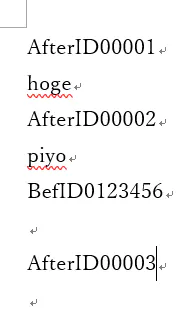
Windows7以降であればインストール不要で使えます。(Wordは要るけど。)処理前のWord文書
処理後のWord文書
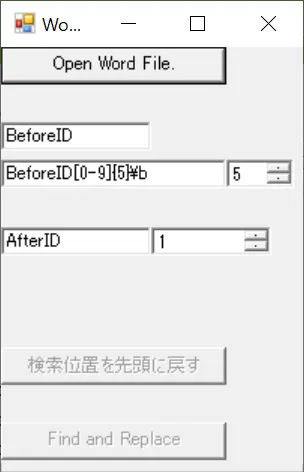
画面
ラベル振るのさぼりました。
使い方はソースをみてください。。。
注意事項
- COMオブジェクトの解放はGCまかせにしてます。
- 途中でWord文書を閉じたりすると、例外で落ちます。
- 開く対象のWord文書は、あらかじめ閉じておいてください。
- C#から操作した場合に、Word文書内の変更履歴に残るのか未確認
- 検索対象が素のテキストだけか未確認。(相互参照とか目次とかヘッダーフッターとか引っかかってしまうかも)
- 何か起きても責任はとれませんので、自己責任でご利用ください。
ソースコード
WordInteropTest.csusing System; using System.Collections; using System.Collections.Generic; using System.Drawing; using System.IO; using System.Reflection; using System.Runtime.InteropServices; using System.Text; using System.Text.RegularExpressions; using System.Windows.Forms; using System.Runtime.CompilerServices; using Word = Microsoft.Office.Interop.Word; // 再度実行するには、本アプリケーションで起動したWordを閉じ、本アプリケーションを再起動してください。 class WordTest : Form { const int ForwardLentgh = 50; Word.Application app; Word.Document doc; Button btnLoad; TextBox txtFindPrefix; // 検索対象の接頭語 TextBox txtFindRegex; // 検索対象の正規表現(接頭語を含める) TextBox txtReplacerPrefix; // 置換後のIDの接頭語 NumericUpDown nudReplacerDigits; // 置換後のIDの数値部の桁数 NumericUpDown nudReplacerId; // 置換後のIDの数値部 Button btnResetPos; Button btnFindReplace; WordTest() { btnLoad = new Button(); btnLoad.Text = "Open Word File."; btnLoad.Size = new Size(150,25); btnLoad.Click += (sender,e)=>{LoadWordFile();}; Controls.Add(btnLoad); txtFindPrefix = new TextBox(); txtFindPrefix.Location = new Point(0,50); txtFindPrefix.Text = "BeforeID"; // Wordが認識する特殊文字あり注意(^t や ^p など)) Controls.Add(txtFindPrefix); txtFindRegex = new TextBox(); txtFindRegex.Location = new Point(0,75); txtFindRegex.Width = 150; txtFindRegex.Text = @"BeforeID[0-9]{5}\b"; // \b は(C#の正規表現では)単語境界を示す。 Controls.Add(txtFindRegex); nudReplacerDigits = new NumericUpDown(); nudReplacerDigits.Location = new Point(150,75); nudReplacerDigits.Width = 45; nudReplacerDigits.Maximum = 7; nudReplacerDigits.Value = 5; nudReplacerDigits.Minimum = 1; Controls.Add(nudReplacerDigits); txtReplacerPrefix = new TextBox(); txtReplacerPrefix.Location = new Point(0,120); txtReplacerPrefix.Text = "AfterID"; Controls.Add(txtReplacerPrefix); nudReplacerId = new NumericUpDown(); nudReplacerId.Location = new Point(100,120); nudReplacerId.Width = 80; nudReplacerId.Maximum = 9999999; nudReplacerId.Value = 1; nudReplacerId.Minimum = 0; Controls.Add(nudReplacerId); btnResetPos = new Button(); btnResetPos.Location = new Point(0,200); btnResetPos.Text = "検索位置を先頭に戻す"; btnResetPos.Size = new Size(150,25); btnResetPos.Click += (sender,e)=>{ResetFindPos();}; btnResetPos.Enabled = false; Controls.Add(btnResetPos); btnFindReplace = new Button(); btnFindReplace.Location = new Point(0,250); btnFindReplace.Text = "Find and Replace"; btnFindReplace.Size = new Size(150,25); btnFindReplace.Click += (sender,e)=>{FindAndReplace();}; btnFindReplace.Enabled = false; Controls.Add(btnFindReplace); ClientSize = new Size(350,400); Text = "Word ID replacer"; } void LoadWordFile() { object oMis = Missing.Value; // System.Reflection.Missing.Value object oTru = true; object oFal = false; object oPth = GetOpenFileNameFromDialog(); if ( oPth == null ) { return; } btnLoad.Enabled = false; btnResetPos.Enabled = true; btnFindReplace.Enabled = true; app = new Word.Application(); app.Application.Visible = true; // true:Wordを表示させる false:表示させない // app.Application.DisplayAlerts = Word.WdAlertLevel.wdAlertsNone; // ← 表示させない場合はこれも併せて指定するとよいらしい // https://docs.microsoft.com/ja-jp/dotnet/api/microsoft.office.interop.word.documents.open?view=word-pia // ※Revert引数は検討必要。 doc = app.Documents.Open( ref oPth,// FileName // ※相対パスで指定すると、ドキュメントフォルダを探しにいくようなので注意。 // (Fileクラスと同じような振る舞いを期待しているとはまります。) ref oMis,// ConfirmConversions: // True to display the Convert File dialog box if the file isn't in Microsoft Word format. ref oFal,// ReadOnly: True to open the document as read-only. ref oMis,// AddToRecentFiles: // True to add the file name to the list of recently used files at the bottom of the File menu. ref oMis,// PasswordDocument: The password for opening the document. ref oMis,// PasswordTemplate: The password for opening the template. ref oFal,// Revert: Controls what happens if FileName is the name of an open document. // True to discard any unsaved changes to the open document and reopen the file. // False to activate the open document. ref oMis,// WritePasswordDocument: The password for saving changes to the document. ref oMis,// WritePasswordTemplate: The password for saving changes to the template. ref oMis,// Format: The file converter to be used to open the document. Can be a WdOpenFormat constant. ref oMis,// Encoding: Can be any valid MsoEncoding constant. The default value is the system code page. ref oMis,// Visible: ref oMis,// OpenAndRepair ref oMis,// DocumentDirection: wdLeftToRight or wdRightToLeft ref oMis,// NoEncodingDialog: // True to skip displaying the Encoding dialog box that Word displays if the text encoding cannot be recognized. ref oMis // XMLTransform ); } [MethodImpl(MethodImplOptions.NoInlining)] void FindAndReplace() { object oMis = Missing.Value; // System.Reflection.Missing.Value object oTru = true; object oFal = false; object oFindStop = Word.WdFindWrap.wdFindStop; object oNoReplace = Word.WdReplace.wdReplaceNone; Regex r; try { r = new Regex("^" + txtFindRegex.Text); } catch(ArgumentException e) { MessageBox.Show(e.ToString()); return; } object oFindText = txtFindPrefix.Text; string prefixNew = txtReplacerPrefix.Text; int idNew = (int)nudReplacerId.Value; int digits = (int)nudReplacerDigits.Value; if ( app.Selection.Document != doc ) { // テキスト選択 doc.Select(); app.Selection.Start = 0; app.Selection.End = 0; } else { app.Selection.End = app.Selection.Start; } // https://docs.microsoft.com/ja-jp/dotnet/api/microsoft.office.interop.word.find.execute?view=word-pia for (;;) { // 固定部分を探す bool foundPrefix = app.Selection.Find.Execute ( ref oFindText,// FindText: 特殊文字あり注意。 // You can search for special characters by specifying appropriate character codes. // For example, "^p" corresponds to a paragraph mark and "^t" corresponds to a tab character. ref oTru,// MatchCase: True to specify that the find text be case-sensitive. ref oFal,// MatchWholeWord: 単語単位での検索 ref oFal,// MatchWildcards ref oFal,// MatchSoundsLike: あいまい検索 ref oFal,// MatchAllWordForms: // True to have the find operation locate all forms of the find text (for example, "sit" locates "sitting" and "sat"). ref oTru,// Forward: Trueで前方検索 ref oFindStop,// Wrap: 検索しきった後に、最初から検索しなおすかどうかを指定する ref oMis,// Format: よくわからない ref oMis,// ReplaceWith ref oNoReplace,// Replace: ここではReplaceしない指定とする (oMisでもよいのかも) ref oMis,// MatchKashida: アラビア語関連の機能らしい。 ref oMis,// MatchDiacritics: 右から左に読む言語関連の機能らしい。 ref oMis,// MatchAlefHamza: アラビア語関連の機能らしい。 ref oMis // MatchControl: 右から左に読む言語関連の機能らしい。 ); // 見つからなかったら検索終了 if ( !foundPrefix ) { MessageBox.Show("Not found."); app.Selection.Start = 0; app.Selection.End = 0; break; } // 選択範囲を拡張する。 app.Selection.End += ForwardLentgh; // 指定された正規表現にマッチするかチェックする string s = app.Selection.Text; Match m = r.Match(s); if ( m.Success ) { string matchPart = m.Groups[0].Value; int startPos = app.Selection.Start; string replacerStr = prefixNew + idNew.ToString("D"+digits.ToString()); app.Selection.End = startPos + matchPart.Length; // 選択範囲を変更。(先頭は一致している前提。) app.Selection.Text = replacerStr; nudReplacerId.Value++; // 次に検索ボタンを押したときのために、検索位置を進める app.Selection.Start = startPos + replacerStr.Length; app.Selection.End = app.Selection.Start; break; } else { // 正規表現にはマッチしなかった。 // 次を検索させる。 Console.WriteLine("Info: Regex mismatch. " + s); app.Selection.Start = app.Selection.End; } } } [MethodImpl(MethodImplOptions.NoInlining)] void ResetFindPos() { app.Selection.Start = 0; app.Selection.End = 0; } string GetOpenFileNameFromDialog() { var ofd = new OpenFileDialog(); ofd.Filter = "MS Word File(*.doc;*.docx)|*.doc;*.docx|All files|*"; ofd.Title = "Select file"; ofd.RestoreDirectory = true; if ( ofd.ShowDialog() == DialogResult.OK ) { return ofd.FileName; } else { return null; } } // RunApp()に処理を分離して属性指定している目的: // JITによるinline展開を禁止することで、 // Mainメソッド内のGC.Collect()までに余計な(Wordの)COM参照オブジェクトが残らないことを期待する。 // ただし、期待通りに動作しているかは確認していない。(そもそも要るのか不明。。) [MethodImpl(MethodImplOptions.NoInlining)] static void RunApp() { Application.Run(new WordTest()); } [STAThread] static void Main() { RunApp(); GC.Collect(); GC.WaitForPendingFinalizers(); } }コンパイル方法
dllの場所は環境依存と思います。
C:\Windows\assembly\GAC_MSIL\以下をdir /s Microsoft.Office.Interop.Word.dllで検索すればいくつか出てくるはずなので、最新っぽいのを使えばよいはず。csc r:C:\Windows\assembly\GAC_MSIL\Microsoft.Office.Interop.Word\15.0.0.0__71e9bce111e9429c\Microsoft.Office.Interop.Word.dll ^ WordInteropTest.cscscのパスの通し方はググってね。

- 投稿日:2019-10-26T03:05:37+09:00
エッセンシャルWPF
諸言
学習履歴全体のリンク
https://qiita.com/shigural/private/444b991293e5ab1b40af本文
エッセンシャルWPF
1章 はじめに
User32→Winform→WPFと発展してきたがいずれもCLRというシステムで動作している
従来との違い
- 従来との違いは総合的なレンダリングとベクタベースのシステム
- XAML(ザムル)を利用した汎用的な記述
StachPanelを使うと縦に、WrapPanelを使うと回り込んだ配置ができる
配置は他にもViewportとTileModeによる塗りつぶし2D配置、GeometryModel3Dによる3D配置、DoubleAnimationによるアニメーションなどができる。Styleにより一斉にプロパティを定義できる。2章 アプリケーション
WPFの原則
WPFの基本原則としてスケーラブルであること、つまり万能であることが上げられる。
WPFはビルドするとXBAPが生成される。これは極めて多機能であるがHTMLベースが標準である。HostInBrowser属性をfalseにすることでデスクトップアプリケーションプログラムとなり更に多機能となる。
WPFの基本原則にWebプログラミングとデスクトッププログラミングの結合も上げられる。例えばハイパーリンクのようなWeb機能をそのまま利用できる。リソースと構成
System.Configurationを利用することでアプリケーションの永続的な状態を管理することができる。つまり状況を保存して起動時にロードすることができる。
リソースは3通りのビルドアクションがある。Contentはリソースをディレクトリにコピーする、Resourceは共通リソースに埋め込む、EmbeddedResourceはアプリケーションに個別で埋め込むがマークアップ利用ができない。リソースはGetContentStream、GetResourceStream、GetRemoteStream関数により読み込むことができる。URI参照による読み込みは、下位レベルではこれらの関数を呼び出している。ウィンドウ
ウィンドウが呼び出されるとき、代表的なものとして次の手順が実行される。
1. コンストラクタが呼び出される
2. Window.Initializedイベントが発生
3. Window.Activeatedイベントが発生→Deactivate(不安定)と交互に何度も発生
4. Window.Loadedイベントが発生
5. Window.ContentRenderedイベントが発生
6. ユーザーがウィンドウを操作する
7. Window.Closingイベントが発生
8. Window.Unloadedイベントが発生
9. Window.Closeイベントが発生
ウィンドウを表示するためにはShow,ShowDialogを呼び出すもしくはVisibilityをVisibleに設定する方法があるが、どれも同じ挙動をする。これはプログラムから呼び出す場合とデータバインディングの両方に対応するためである。なお、Windowを別のWindowの子とするためにはOwnerプロバティを設定する。被オーナーは常にオーナーの上に表示され、オーナーの選択を妨げない。またオーナーが閉じると自動的に閉じ、オーナーが非表示になると自動的に非表示になる。ウィンドウの位置はWindowStartupLocationにより、大きさはSizeToContentにより設定できる。なおWindowStartupLocation.CenterOwnerによりオーナーの中心に表示できる。
ウィンドウの情報はすべてApplication.Windowsに与えられる。Application.Current.Windowsをforeachで取り出すことにより、各々のtitleからウィンドウ一覧を表示するようなことができる。ユーザーコントロール
ウィンドウは独立した機能セットであるが、これよりも小さな単位としてコントロールが上げられる。コントロールはUIをカプセル化したユーザーコントロールContentControlと他のアプリケーションから利用できる再利用可能なカスタムコントロールに分かれる。
ナビゲーションとページ
WPFには3つのナビゲーションフレームワークを備えている。
- ナビゲーションホスト(NavigationWindow)
- Windowから派生する。戻るボタンなどナビゲーションを可能にするインフラストラクチャを追加する。
- ナビゲーション対応コンテンツ(Page)
- ジャーナルである。
3章 コントロール
4章 レイアウト
5章 視覚要素
6章 データ
7章 アクション
8章 スタイル
付録 基本サービス
- 投稿日:2019-10-26T00:32:10+09:00
[C#] .NET標準のDataContractJsonSerializerクラスを使ってjsonを読み書きする
もくじ
→https://qiita.com/tera1707/items/4fda73d86eded283ec4fやりたいこと
jsonファイルを読み書きするときに、使えるライブラリがいくつかあるようだが、できれば.netで標準で使えるものを使って行いたい。
やり方
DataContractJsonSerializerクラスをつかう。
サンプル
jsonファイルからデータを読んで、クラスオブジェクトに展開する。(デシリアライズ)
そのあと、クラスオブジェクトの中身をファイルにjson文字列として保存する。(シリアライズ)サンプル.csusing System; using System.Collections.Generic; using System.IO; using System.Runtime.Serialization; using System.Runtime.Serialization.Json; using System.Text; namespace JsonTest { class Program { static void Main(string[] args) { // デシリアライズ(jsonファイル→クラスオブジェクト) string jsonFilePath = @"TestData.json"; var data = new List<PointData>(); using (var ms = new FileStream(jsonFilePath, FileMode.Open)) { var serializer = new DataContractJsonSerializer(typeof(List<PointData>)); data = (List<PointData>)serializer.ReadObject(ms); } // シリアライズ(クラスオブジェクト→jsonファイル) string jsonFilePathOut = @"TestDataOut.json"; using (var stream = new MemoryStream()) using (var fs = new FileStream(jsonFilePathOut, FileMode.Create)) using (var sw = new StreamWriter(fs)) { var serializer = new DataContractJsonSerializer(typeof(List<PointData>)); serializer.WriteObject(stream, data); var str2write = Encoding.UTF8.GetString(stream.ToArray()); sw.Write(str2write); } // 終わり Console.WriteLine("json読み書き完了"); Console.ReadLine(); } } [DataContract] public class PointData { [DataMember] public List<double> small { get; set; } [DataMember] public List<double> large { get; set; } } }使ったjsonはこちら
TestData.json[ { "small": [ 123.456, 789.012 ], "large": [ 987.654, 654.321 ] }, { "small": [ 111.456, 222.012 ], "large": [ 333.654, 444.321 ] } ]デシリアライズしたときのウォッチ
※サンプルのTestData.jsonをちょっといじって、2つ目のデータの方の「Large」を試しに削ったjsonを呼んだ時のウォッチjsonメモ
[と]でくくったところは配列になる。
- クラスで書くと、
List<〇〇>になる。- jsonの先頭が
[で配列の場合は、new DataContractJsonSerializer(typeof(List<PointData>));のように、コンストラクタに渡す型がList<〇〇>になる。- 先頭以外だと、クラスのプロパティの型が
List<〇〇>になる。{と}でくくったところはオブジェクトになる。
- オブジェクトは、C#ではクラスやプロパティに該当する。
- 今回サンプルにはないが、数値以外にもjsonにはデータを持たせられる様子。(こちらによると、下表のようなものを持たせられる)
データ型 備考 数値 文字列 ダブルクォーテーションでくくる。 真偽値 true or false。小文字にする。 配列 コンマ区切りの角かっこでくくる。 オブジェクト コンマ区切りの波かっこでくくる。キーと値のペアをコロンで対にする。キーはダブルクォーテーションでくくる。 null デシリアライズ時、C#のクラスにはあるのにjsonにないようなときに、jsonを読むとnullになる C#のクラスとjsonの対応付けイメージ
今回のサンプルのC#とjsonの対応付けは下記のようなイメージ。
備考
データを入れるクラスに
[DataContract]、プロパティに[DataMember]をつけてるが、これらをつけてなくても問題なくシリアライズ/デシリアライズできた。
その辺の、アトリビュートをつけたとき、つけてないときの動作の比較はこちらのサイトが超絶詳しい。そちらを参照。参考
DataContractJsonSerializerの詳細動作
>本クラスの使い方から、[DataContract]をつけたとき、つけないときの動作の比較など、わかりやすく解説されてる。このページ見れば全部わかる。
http://mokake.hatenablog.com/entry/2017/09/12/195656DataContractJsonSerializer Class (MS Docs)
https://docs.microsoft.com/ja-jp/dotnet/api/system.runtime.serialization.json.datacontractjsonserializer?view=netframework-4.8jsonのデータの種類
https://soseiji-memo.hatenablog.com/entry/json

