20201006のiOSに関する記事は10件です。

XLPagerTabStripが使われている画面でスワイプバックを使いたい

問題

NavigationControllerで遷移した先の画面がXLPagerStripを使用していた場合、配置されてるcontainerView(UIScrollView)に引っ張られて
スワイプバック(Interactive Pop Gesture)が効かなくなってしまう。

解決策

以下のコードをviewWillAppearに追加する。

containerViewのGestureはNavigationControllerのGestureが失敗した時に実行されるようにする?という感じ。

if let naviVc = self.navigationController {
    self.containerView.panGestureRecognizer.require(toFail: naviVc.interactivePopGestureRecognizer!)
}

参考サイト

  • このエントリーをはてなブックマークに追加
  • Qiitaで続きを読む

【Flutter】flutter_twitter_loginを使用したiOSビルド時のエラー対策

FlutterでTwitterログインをするため、flutter_twitter_loginというライブラリを使い、iOS用にビルドしたところエラーが出たので、実際に行った対処法を書いておきます。

1. flutter_twitter_login導入

使ったライブラリはflutter_twitter_login 1.1.0です。pubspec.yamlに依存関係を追加します。

pubspec.yaml
dependencies:
  flutter_twitter_login: ^1.1.0

次にPub getします。

$ flutter pub get

2. Automatically assigning platform iOS with version 8.0

iOS用にビルドすると、以下のエラーが出ました。

Error output from CocoaPods:
↳

    [!] Automatically assigning platform `iOS` with version `8.0` on target `Runner` because no platform was specified. Please specify a platform for this target in your Podfile. See `https://guides.cocoapods.org/syntax/podfile.html#platform`.

Exception: Error running pod install

Podファイルで、ターゲットとするiOSのバージョンが8.0になっているのがいけないようです。そこで、ios/Podfileの2行目にあったコメントを外します。

Podfile
# Uncomment this line to define a global platform for your project
platform :ios, '9.0'

3. The iOS deployment target 'IPHONEOS_DEPLOYMENT_TARGET' is set to 8.0

再びビルドすると、今度は以下のエラーが出ました。

Error output from Xcode build:
↳
    2020-10-06 18:54:14.636 xcodebuild[46685:460385]  DTDeviceKit: deviceType from 00008030-0008686E1A9B802E was NULL
    2020-10-06 18:54:14.738 xcodebuild[46685:460399]  DTDeviceKit: deviceType from 00008030-0008686E1A9B802E was NULL
    2020-10-06 18:54:14.738 xcodebuild[46685:460399]  DTDeviceKit: deviceType from 00008030-0008686E1A9B802E was NULL
    ** BUILD FAILED **

しかし、その後に以下のように大量の警告が出ます。ターゲットとなるiOSのバージョンがきちんと変更されていないようなので、こちらから対処することにしました。

    warning: The iOS deployment target 'IPHONEOS_DEPLOYMENT_TARGET' is set to 8.0, but the range of supported deployment target versions is 9.0 to 14.0.99. (in target 'FirebaseCore' from project 'Pods')
    warning: The iOS deployment target 'IPHONEOS_DEPLOYMENT_TARGET' is set to 8.0, but the range of supported deployment target versions is 9.0 to 14.0.99. (in target 'flutter_twitter_login' from project 'Pods')

〜 中略 〜

    warning: The iOS deployment target 'IPHONEOS_DEPLOYMENT_TARGET' is set to 8.0, but the range of supported deployment target versions is 9.0 to 14.0.99. (in target 'GTMSessionFetcher' from project 'Pods')
    warning: The iOS deployment target 'IPHONEOS_DEPLOYMENT_TARGET' is set to 8.0, but the range of supported deployment target versions is 9.0 to 14.0.99. (in target 'firebase_auth' from project 'Pods')
    warning: The iOS deployment target 'IPHONEOS_DEPLOYMENT_TARGET' is set to 8.0, but the range of supported deployment target versions is 9.0 to 14.0.99. (in target 'firebase_core' from project 'Pods')
    warning: The iOS deployment target 'IPHONEOS_DEPLOYMENT_TARGET' is set to 8.0, but the range of supported deployment target versions is 9.0 to 14.0.99. (in target 'FirebaseAuth' from project 'Pods')
    warning: The iOS deployment target 'IPHONEOS_DEPLOYMENT_TARGET' is set to 8.0, but the range of supported deployment target versions is 9.0 to 14.0.99. (in target 'Firebase' from project 'Pods')
    warning: The iOS deployment target 'IPHONEOS_DEPLOYMENT_TARGET' is set to 8.0, but the range of supported deployment target versions is 9.0 to 14.0.99. (in target 'FirebaseAuthInterop' from project 'Pods')
    warning: The iOS deployment target 'IPHONEOS_DEPLOYMENT_TARGET' is set to 8.0, but the range of supported deployment target versions is 9.0 to 14.0.99. (in target 'Flutter' from project 'Pods')
    warning: The iOS deployment target 'IPHONEOS_DEPLOYMENT_TARGET' is set to 8.0, but the range of supported deployment target versions is 9.0 to 14.0.99. (in target 'FirebaseCoreDiagnostics' from project 'Pods')
    warning: The iOS deployment target 'IPHONEOS_DEPLOYMENT_TARGET' is set to 8.0, but the range of supported deployment target versions is 9.0 to 14.0.99. (in target 'firebase_admob' from project 'Pods')
    warning: The iOS deployment target 'IPHONEOS_DEPLOYMENT_TARGET' is set to 8.0, but the range of supported deployment target versions is 9.0 to 14.0.99. (in target 'GoogleDataTransport' from project 'Pods')
    warning: The iOS deployment target 'IPHONEOS_DEPLOYMENT_TARGET' is set to 8.0, but the range of supported deployment target versions is 9.0 to 14.0.99. (in target 'GoogleAppMeasurement' from project 'Pods')
    warning: The iOS deployment target 'IPHONEOS_DEPLOYMENT_TARGET' is set to 8.0, but the range of supported deployment target versions is 9.0 to 14.0.99. (in target 'Runner' from project 'Runner')
    warning: The iOS deployment target 'IPHONEOS_DEPLOYMENT_TARGET' is set to 8.0, but the range of supported deployment target versions is 9.0 to 14.0.99. (in target 'FirebaseCoreDiagnosticsInterop' from project 'Pods')
    warning: The iOS deployment target 'IPHONEOS_DEPLOYMENT_TARGET' is set to 8.0, but the range of supported deployment target versions is 9.0 to 14.0.99. (in target 'GoogleUtilities' from project 'Pods')
    warning: The iOS deployment target 'IPHONEOS_DEPLOYMENT_TARGET' is set to 8.0, but the range of supported deployment target versions is 9.0 to 14.0.99. (in target 'Google-Mobile-Ads-SDK' from project 'Pods')

Could not build the precompiled application for the device.

ios/Flutter/AppFrameworkInfo.plistに書かれているMinimumOSVersionを9.0に変更します。

AppFrameworkInfo.plist
  <key>MinimumOSVersion</key>
  <string>9.0</string>

さらに、ios/Podfileの下の方にあるflutter_additional_ios_build_settings(target)という設定の下に、バージョンの設定を追加します。

Podfile
post_install do |installer|
  installer.pods_project.targets.each do |target|
    flutter_additional_ios_build_settings(target)
    target.build_configurations.each do |config|
      config.build_settings['IPHONEOS_DEPLOYMENT_TARGET'] = '9.0'
    end
  end
end

これでビルドできるようになりました。DTDeviceKit: deviceType from 00008030-0008686E1A9B802E was NULLというエラーが出ていましたが、バージョンを正しくすることで、解消したようです。

参考リンク

  • このエントリーをはてなブックマークに追加
  • Qiitaで続きを読む

unityのARFoundationでアプリ作ったのに、実機だとカメラが真っ黒になってしまう時の改善策

unityのARFoundationでARのアプリをエラーなく作ったのに、iosやAndroidで実機で立ち上げると、カメラが真っ黒で映らない!!時の改善方法をご紹介します。

改善策

  • 「camera usage description」 を設定していない

Edit→project settings→Player→iosまたはAndroidを選択(実機の環境)
→camera usage descriptionの欄に

Camera required for AR

というように記入してビルド
iosの場合はこれでXcodeの内のinfo.plistにPrivacy - Camera Usage Description が自動的にセットされます。

スクリーンショット 2020-10-06 17.02.29.png

  • XR Plug-in Management の Plug-in Providers を設定(私はこれで解決)

Edit→project settings→XR Plug-in Management→iosまたはAndroidを選択(実機の環境)→ARKitまたはARCoreにチェックを入れる。

スクリーンショット 2020-10-06 17.01.55.png

XR Plug-in Managementはこちらに記載があります。

  • バージョンを最新版にアップデート

Unity、ARFoundation,ios,Android,xcode,ARKit,ARCoreなどなどアップデート
ちなみXcodeのアップデートは容量と時間が必要なのでご注意を笑

どこにもエラーがないのに、、

全て設定したのにカメラが動かないとなると、解決策はここら辺だと思います。
ARにおいてカメラはマストなので、しっかりと解決して実機で確認できらいいですね。

  • このエントリーをはてなブックマークに追加
  • Qiitaで続きを読む

AIR GOで無料でAndroid/iOSアプリの脆弱性診断

AIR GO」はLINEが提供しているセキュリティープラットフォーム「AIR」のプロダクトの1つで無料でモバイルアプリの脆弱性診断を行ってくれるSaaSです。

AIRのアカウント登録を行えば直ぐに使い始めることができます。

作ったAIRアカウントでログインしてAIR GOを開き、AndroidならAPKファイル、iOSならIPAファイルをアップロードするだけで、直ぐに脆弱性診断が行えます。
URLを入力すると参照先にマルウェアが含まれていないかチェックできます。

image.png

脆弱性診断結果は次のようなレポート形式で表示されます。

test.png

無料でここまで脆弱性診断できるのは素晴らしいですね。

ただし、「一つのアカウントごと1回のみスキャン可能です。」とメッセージがでている通り、1アカウントで1回しか検査ができません…。
「1アカウントにつき1日1回」かと思いきやマジで1回のようです。

じゃあ、それ以降はどうすればいいかの情報が見つからないので確かなことはわかりませんが、おそらく有償版が必要になると思われ。

その有償版のサブスクリプションはAmazon SaaS Storeで買えるようです。
https://www.amazon.co.jp/dp/B0814HJGH9

  • このエントリーをはてなブックマークに追加
  • Qiitaで続きを読む

[SwiftUI]backgroundの指定場所ごとにどのように変わるかを調べてみた

SwiftUIでbackgroundの指定で思ったように塗りつぶしてくれなかったりしたので、どこで指定したらどのように塗り潰されるかを調べてみました。

コードとView

struct ContentView: View {

    var body: some View {
        VStack {
            Spacer()
            Text("Hello world!")
                .foregroundColor(Color.white)
                .background(Color.green)
                .frame(maxWidth: .infinity, minHeight: 50)
                .background(Color.blue)
                .padding()
                .background(Color.orange)
            Spacer()
        }.frame(width: 320, height: 100)
    }

}

// Present the view controller in the Live View window
PlaygroundPage.current.liveView = UIHostingController(rootView: ContentView())

スクリーンショット 2020-10-06 11.30.38.png

解説

  • frameの前にbackgroundを指定すると、テキストギリギリの範囲で塗りつぶされました(緑色)
  • frameの後にbackgroundがあり、かつbackgroundの後にpaddingがある場合は、padding分内側で塗りつぶされました(青)
  • paddingの後にbackgroundを指定すると、paddingも無視した領域で塗りつぶされました(オレンジ)

このようにbackgroundの位置に注意することで、想定通りの塗りつぶしができそうです。

  • このエントリーをはてなブックマークに追加
  • Qiitaで続きを読む

デバイスのライトを点ける

フラッシュや懐中電灯に使われているライトを使う方法です。
点灯消灯を制御できます。

Oct-06-2020 10-21-18.gif

AVFoundationのAVCaptureDeviceから制御できます。

1,点灯

let avCaptureDevice = AVCaptureDevice.default(for: AVMediaType.video)

if avCaptureDevice!.hasTorch, avCaptureDevice!.isTorchAvailable { // キャプチャデバイスにライトがあるか、 ライトが使用可能な状態か
    do {
        try avCaptureDevice!.lockForConfiguration() // デバイスにアクセスするときはこれする。
        try avCaptureDevice!.setTorchModeOn(level: 1.0) // 点灯。明るさレベルは 0.0 ~ 1.0
    } catch let error {
        print(error)
    }
    avCaptureDevice!.unlockForConfiguration()
}

torchMode = .on でも最大レベルで点灯できます。
torchMode = .auto は「キャプチャデバイスは継続的に光のレベルを監視し、必要に応じてトーチを使用します。」とのことです。

2,消灯

do {
    try avCaptureDevice!.lockForConfiguration()
} catch let error {
    print(error)
}
avCaptureDevice!.torchMode = .off
avCaptureDevice!.unlockForConfiguration()

?


お仕事のご相談こちらまで
rockyshikoku@gmail.com

Core MLを使ったアプリを作っています。
機械学習関連の情報を発信しています。

Twitter
Medium

  • このエントリーをはてなブックマークに追加
  • Qiitaで続きを読む

[swift5]tabBarをタップした場合に処理を実行する方法

didSelectを使用しよう

https://developer.apple.com/documentation/uikit/uitabbardelegate/1623463-tabbar
Appleの公式リファレンスです。

tabBarをタップした場合に処理を実行したい場合は、dedSelectを使いましょう。

ViewController.swift
//tabbarをタップした場合のアクション
override func tabBar(_ tabBar: UITabBar, didSelect item: UITabBarItem) {
  switch item.title {
    case "ニュース":
      print("ニュースアイテムをタップしました")
    case "天気":
      print("天気アイテムをタップしました")
    case "検索":
      print("検索アイテムをタップしました")
    default: break
    }
}

今回のサンプルコードではswitch文でtabBarのitemのtitleごとに処理を分けています。
item.titleがそれを意味します。

tabBarは左からtag [0.1.2...]と数字で管理されていますが、私は、第三者がコードを見た場合に、tagで分岐しているよりも、item.titleで分岐している方がわかりやすい、と考えているためitem.titleとしています。

  • このエントリーをはてなブックマークに追加
  • Qiitaで続きを読む

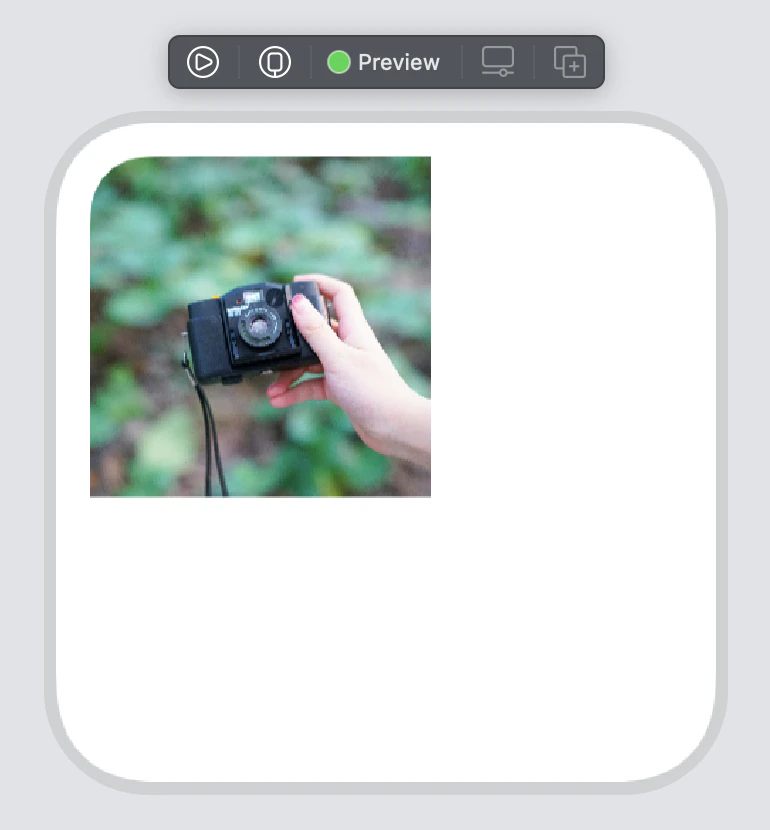
特定の角のみ ContainerRelativeShape を適用したい [SwiftUI]

iOS 14 から登場した自動角丸 ContainerRelativeShape を、特定の角にだけ利用したいという記事です。

ContainerRelativeShape とは

iPhone 11 の端末自体や、 iOS14 から登場した Widget など、各箇所固有の角丸UIが増えてきています。
それぞれの箇所で適切な角丸半径で表示してくれるのが、ContainerRelativeShape です。

目的

左上に配置して ContainerRelativeShape 適用 拡張して左上だけ角丸にする!
  • 特定の角だけ角丸にしたい
  • なおかつただの角丸ではなく自動計算の ContainerRelativeShape を使いたい

これを実現した、一番右の画像の実装を解説します。

コード

カスタム Shape

Shape Protocol を用い、
角の情報を扱うちょうどよい UIRectCorner OptionSet があるので利用して、
独自の ContainerRelativeShapeSpecificCorner Struct を定義します。

struct ContainerRelativeShapeSpecificCorner: Shape {

    private let corners: [UIRectCorner]

    init(corner: UIRectCorner...) {
        self.corners = corner
    }

    func path(in rect: CGRect) -> Path {
        var p = ContainerRelativeShape().path(in: rect)

        if corners.contains(.allCorners) {
            return p
        }

        if !corners.contains(.topLeft) {
            p.addPath(Rectangle().path(in: CGRect(x: rect.origin.x, y: rect.origin.y, width: rect.width / 2, height: rect.height / 2)))
        }
        if !corners.contains(.topRight) {
            p.addPath(Rectangle().path(in: CGRect(x: rect.origin.x + rect.width / 2, y: rect.origin.y, width: rect.width / 2, height: rect.height / 2)))
        }
        if !corners.contains(.bottomLeft) {
            p.addPath(Rectangle().path(in: CGRect(x: rect.origin.x, y: rect.origin.y + rect.height / 2, width: rect.width / 2, height: rect.height / 2)))
        }
        if !corners.contains(.bottomRight) {
            p.addPath(Rectangle().path(in: CGRect(x: rect.origin.x + rect.width / 2, y: rect.origin.y + rect.height / 2, width: rect.width / 2, height: rect.height / 2)))
        }
        return p
    }
}

利用例

// 本来
Image("camera")
    .clipShape(ContainerRelativeShape())

// 今回のやつ (特定の角だけ角丸)
Image("camera")
    .clipShape(ContainerRelativeShapeSpecificCorner(corner: .topLeft, .topRight))

// 全コードサンプル
struct SampleView: View {
    var body: some View {
        Group {
            Image("camera")
                .resizable()
                .scaledToFill()
                .frame(width: 80, height: 80)
                .clipShape(ContainerRelativeShapeSpecificCorner(corner: .topLeft))
        }
        .frame(maxWidth: .infinity, maxHeight: .infinity, alignment: .topLeading)
        .padding(8)
    }
}
  • このエントリーをはてなブックマークに追加
  • Qiitaで続きを読む

特定の角のみ ContainerRelativeShape を適用したい [SwiftUI]

iOS 14 から登場した自動角丸 ContainerRelativeShape を、特定の角にだけ利用したいという記事です。

ContainerRelativeShape とは

iPhone 11 の端末自体や、 iOS14 から登場した Widget など、各箇所固有の角丸UIが増えてきています。
それぞれの箇所で適切な角丸半径で表示してくれるのが、ContainerRelativeShape です。

目的

左上に配置して ContainerRelativeShape 適用 拡張して左上だけ角丸にする!
  • 特定の角だけ角丸にしたい
  • なおかつただの角丸ではなく自動計算の ContainerRelativeShape を使いたい

これを実現した、一番右の画像の実装を解説します。

コード

カスタム Shape

Shape Protocol を用い、
角の情報を扱うちょうどよい UIRectCorner OptionSet があるので利用して、
独自の ContainerRelativeShapeSpecificCorner Struct を定義します。

struct ContainerRelativeShapeSpecificCorner: Shape {

    private let corners: [UIRectCorner]

    init(corner: UIRectCorner...) {
        self.corners = corner
    }

    func path(in rect: CGRect) -> Path {
        var p = ContainerRelativeShape().path(in: rect)

        if corners.contains(.allCorners) {
            return p
        }

        if !corners.contains(.topLeft) {
            p.addPath(Rectangle().path(in: CGRect(x: rect.origin.x, y: rect.origin.y, width: rect.width / 2, height: rect.height / 2)))
        }
        if !corners.contains(.topRight) {
            p.addPath(Rectangle().path(in: CGRect(x: rect.origin.x + rect.width / 2, y: rect.origin.y, width: rect.width / 2, height: rect.height / 2)))
        }
        if !corners.contains(.bottomLeft) {
            p.addPath(Rectangle().path(in: CGRect(x: rect.origin.x, y: rect.origin.y + rect.height / 2, width: rect.width / 2, height: rect.height / 2)))
        }
        if !corners.contains(.bottomRight) {
            p.addPath(Rectangle().path(in: CGRect(x: rect.origin.x + rect.width / 2, y: rect.origin.y + rect.height / 2, width: rect.width / 2, height: rect.height / 2)))
        }
        return p
    }
}

利用例

// 本来
Image("camera")
    .clipShape(ContainerRelativeShape())

// 今回のやつ (特定の角だけ角丸)
Image("camera")
    .clipShape(ContainerRelativeShapeSpecificCorner(corner: .topLeft, .topRight))

// 全コードサンプル
struct SampleView: View {
    var body: some View {
        Group {
            Image("camera")
                .resizable()
                .scaledToFill()
                .frame(width: 80, height: 80)
                .clipShape(ContainerRelativeShapeSpecificCorner(corner: .topLeft))
        }
        .frame(maxWidth: .infinity, maxHeight: .infinity, alignment: .topLeading)
        .padding(8)
    }
}
  • このエントリーをはてなブックマークに追加
  • Qiitaで続きを読む

iosのinputやselectタグなどで画面が拡大されるのを防ぐ

課題

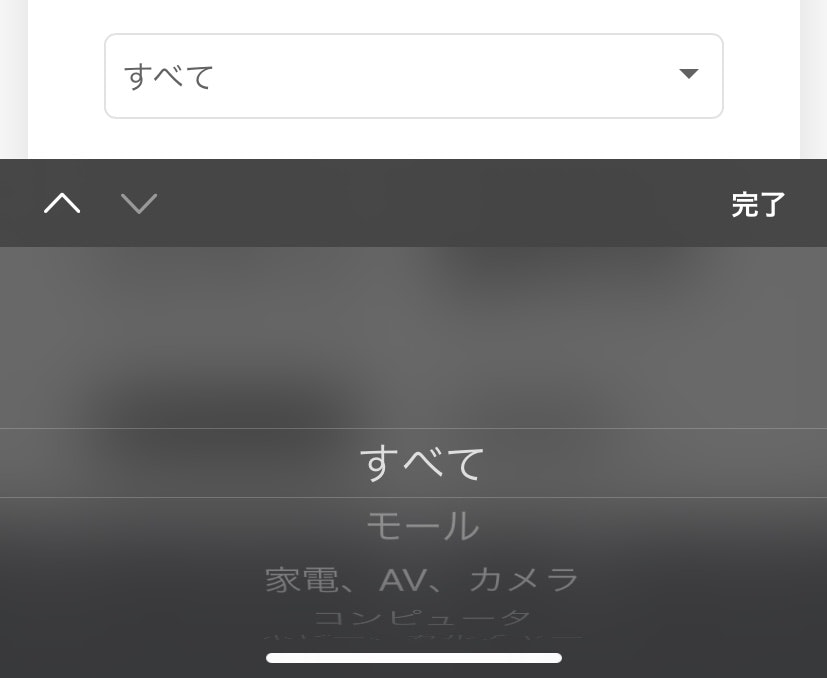
iosで input,select,textareaなどの要素をクリックすると下の画像のように拡大表示されてしまう
IMG_3112.jpg

解決方法

それぞれのタグに下記のcssを追加する

input, select, textarea {
 font-size: initial !important;
}

結果

IMG_3113.jpg

iosではフォントサイズが16px以下のinputやselectタグをクリックすると拡大されてしまう仕様があるため、こちらでフォントサイズを初期化するよう明示してあげます

お疲れ様でした!

  • このエントリーをはてなブックマークに追加
  • Qiitaで続きを読む