- 投稿日:2020-06-19T23:17:40+09:00
ブランチが壊れたときの修正方法
ブランチが壊れた
なんかブランチが壊れた。
症状は、全てのファイルを新規ファイルと認識していて、スタッシュもチェックアウトもできない。
スタッシュをしようとすると、下記のエラーが出てきます。You do not have the initial commit yet多分、プッシュしてる途中でPCが謎の再起動を始めたせい。
途中だったプッシュはgitlabに反映されているから問題ないように見えるけど、ローカルには問題しかない。
もう一度PC再起動してみたけど意味ありませんでした。修正手順
まず、エラーを確認します。
$  git log
fatal: your current branch appears to be broken
がっつり、ブランチが壊れたって書かれています。
次に、gitのログを確認します。
※ブランチ名はfeature_20200619とします$ ls .git/logs/refs/heads/feature_20200619 .git/logs/refs/heads/feature_20200619慎重派なので、本当はディレクトリ1つずつ確認していって、ブランチのところまでたどり着きました。
とにかく、ログがあることを確認したので、開きます。
$ vim .git/logs/refs/heads/feature_20200619こんな感じのログファイルが開きました。
gitのログファイル初めて見た。
ハッシュは短く編集してます。000000000000000 81df1698f65da66 {ユーザー名} <{メールアドレス}> {タイムスタンプ} branch: Created from HEAD 81df1698f65da66 cf3db6d02cf79e1 {ユーザー名} <{メールアドレス}> {タイムスタンプ} commit: コミットメッセージ1 cf3db6d02cf79e1 89afc1b749f3a6c {ユーザー名} <{メールアドレス}> {タイムスタンプ} commit: コミットメッセージ2 89afc1b749f3a6c aabf716e45789eb {ユーザー名} <{メールアドレス}> {タイムスタンプ} commit: コミットメッセージ3コミットのカズだけログがあるっぽい。
最後のログのaabf716e45789ebをコピーします。次に下記コマンドで別のファイルを開きます。
$ ls .git/refs/heads/feature_20200619
.git/refs/heads/feature_20200619

$ vim .git/refs/heads/feature_20200619
文字化けっぽい文字の羅列が表示されたので、それを消して先程コピーしたハッシュで上書きします。
$ git stash save test
No local changes to save
スタッシュしようとしたら変更点ないよって言われたので、復元成功です。
参考

- 投稿日:2020-06-19T20:05:23+09:00
git 基礎
この記事はudemyのgit講座
Git Complete: The definitive, step-by-step guide to Git
(https://www.udemy.com/course/git-complete/)
を参考にし作成しています。
解釈の間違いなどがあるかと思いますがその時はコメントしていただけると幸いです。
又コミュニティガイドラインは守っているつもりですがQiitaを投稿し始めてまもないのでその際もコメントしていただけるとありがたいです。gitとは
ソースコードバージョン管理ツール
ソースコードの変更、ファイル構成の変更などの変更を全て記録することができる。変更箇所の違いを見ることもできる。
とても便利なツールである。githubとは
誰がどのようなソースを管理してるか見ることができる。
またそのソースコードを自分のディレクトリへコピーすることもできる。5つの基本概念
作業ディレクトリ:
コンピュータ上のディレクトリまたはフォルダ
普通にソースコードなどを変更したりする場所ステージングエリア:
作業ディレクトリとローカルgitリポジトリの中間の場所
gitリポジトリにcommitするための変更をキューのように入れておく場所ローカルgitリポジトリ:
自分のコンピュータの中のgitリポジトリ。
.gitフォルダと呼ばれる隠しフォルダforkとは:
他人のgithubアカウントからforkボタンを押すと自分のgithubリポジトリにコピーすることができる
マスターブランチ:
時系列でファイルの変更を管理するものをブランチといい、枝みたいな意味である。デフォルトのブランチがマスターブランチとなっている。
githubに登録する
ユーザー登録するとgithubにリポジトリを作成する
git コマンド 一覧
バージョン確認
$ git version
git version 2.17.2 (Apple Git-113)
ローカルの設定
$ git config --global user.name "<ユーザーの名前>"
$ git config --global user.email "<ユーザーのメールアドレス>"
$ git config --global --list
user.name=<ユーザーの名前>
user.email=<ユーザーのメールアドレス>
①githubからローカルにリポジトリをクローン(取得)する
$ git clone <github URL>githubから取得したいリポジトリのURLをコピーしてくる
コマンド実行
github上のリポジトリの完全なコピーをローカルに作成する②gitの状態表示
$ git status
On branch master
Your branch is up to date with 'origin/master'.

nothing to commit, working tree clean
自分がマスターブランチにいることを示している。
マスターブランチはgitリポジトリのデフォルトブランチとなる。
originとはgithubリポジトリへの参照。
git status コマンドはマスターが「origin/masterで最新」であることを表している。またローカルリポジトリ、ステージングエリアなどの情報も見れる。
「working tree clean」: 何も変更がない状態③ローカルリポジトリに入り、新規ファイル作成,ステータス確認
$ cd git_intro/
$ ls
first.txt  second.txt
$ touch 0613.txt
$ ls
0613.txt   first.txt  second.txt
$ git status
On branch master
Your branch is up to date with 'origin/master'.

Untracked files:
  (use "git add <file>..." to include in what will be committed)

    0613.txt

nothing added to commit but untracked files present (use "git add" to track)
今の状態だと作成した0613.txtはgitにまだ追加されていないということ。
現在は0613.txtは作業ディレクトリにある状態④ステージングエリアに移動させよう
$ git add 0613.txt

$ git status
On branch master
Your branch is up to date with 'origin/master'.

Changes to be committed:
  (use "git reset HEAD <file>..." to unstage)

    new file:   0613.txt
「new file: 0613.txt」: ステージングエリアに新しいファイルがあるという意味。
「Changes to be committed」 : コミットされる変更⑤ローカルリポジトリにコミットしよう
$ git commit -m "add 0613.txt"

$ git status
On branch master
Your branch is ahead of 'origin/master' by 1 commit.
  (use "git push" to publish your local commits)

nothing to commit, working tree clean
「Your branch is ahead of 'origin/master' by 1 commit」
は参照しているリモートリポジトリのマスターブランチより一個進んでいる事を示している。
現在ファイルはまだローカルリポジトリにあリます。⑥githubにプッシュしよう
$ git push origin masterリモートリポジトリ、ローカルリポジトリにはそれぞれ対応するブランチがある。
変更されるのはローカルのブランチで変更後にリモートリポジトリにpushする必要がある。
origin: クローン元のリモートリポジトリの名前
master: デフォルトのブランチの名前
git push origin master: 変更されたローカルのブランチをgithubのブランチにpushするという意味。
現在の状態でgithubにアクセスすると0613.txtが追加されている基本コマンド
ローカルリポジトリの作成
$ git init new_repogitory ----(新規リポジトリの作成)

$ cd new_repogitory/
$ ls -al
total 0
drwxr-xr-x  3 username  staff   96  6 14 09:51 .
drwxr-xr-x  4 username  staff  128  6 14 09:51 ..
drwxr-xr-x  9 username  staff  288  6 14 09:51 .git

$ git status
On branch master ----(マスターブランチにいる)

No commits yet ----(まだコミットしていない)

nothing to commit (create/copy files and use "git add" to track) ----(コミットしてない)

$ mate one.txt ----(新規テキストを作成)

$ git status ----(ステータス確認)
On branch master

No commits yet

Untracked files: ----(gitが追跡していないファイルがある)
  (use "git add <file>..." to include in what will be committed)

    one.txt

nothing added to commit but untracked files present (use "git add" to track) ----(addしていない)

$ git add one.txt ----(ステージングエリアに追加)

$ git status
On branch master

No commits yet

Changes to be committed: ----(コミットする変更がある)
  (use "git rm --cached <file>..." to unstage)

    new file:   one.txt

$ git commit -m "adding new file" ----(変更をコミットする)
[master (root-commit) 0e332ef] adding new file
 1 file changed, 1 insertion(+)
 create mode 100644 one.txt

$ git status
On branch master
nothing to commit, working tree clean ----(なにもない状態)
コミットした場合に出力される「0e332ef」の文字列はコミットのユニークな識別子である。
ローカルリポジトリの作成
$ git init
Initialized empty Git repository in /Users/user/Desktop/git/test/.git/
現在のディレクトリを作業ディレクトリとする
実行すると作業ディレクトリに./gitディレクトリが作成されるpushする前にpullしよう!
$ git pull origin master
From https://github.com/user-cloud/starter-web
 * branch            master     -> FETCH_HEAD
Already up to date. ----(すでにアップデートされている=最新版)

$ git push origin master
Counting objects: 3, done.
Delta compression using up to 4 threads.
Compressing objects: 100% (2/2), done.
Writing objects: 100% (3/3), 279 bytes | 279.00 KiB/s, done.
Total 3 (delta 1), reused 0 (delta 0)
remote: Resolving deltas: 100% (1/1), completed with 1 local object.
To https://github.com/user-cloud/starter-web.git
   4beb7f0..da1f580  master -> master
理由はリモートリポジトリが新しく更新されている可能性があるため。
.gitconfigファイルを編集しよう!
$ mate ~/.gitconfig
[filter "lfs"]
    clean = git-lfs clean -- %f
    smudge = git-lfs smudge -- %f
    process = git-lfs filter-process
    required = true
[user]
    name = <username>
    email = <usermailaddress>
[core]
    editor = mate -w
ここでgitの設定を変更することができる
addとcommitを同時にやってしまおう!
$ git commit -am "add second write"gitが追跡しているファイル一覧を見よう!
$ git ls-filesディレクトリ階層ごとに変更がある場合
$ mkdir -p level1/level2/level3

ここで各階層ごとにファイルを作成する

$ git status
On branch master
Your branch is ahead of 'origin/master' by 2 commits.
  (use "git push" to publish your local commits)

Untracked files:
  (use "git add <file>..." to include in what will be committed)

    level1/

nothing added to commit but untracked files present (use "git add" to track)

$ git add .

$ git status
On branch master
Your branch is ahead of 'origin/master' by 2 commits.
  (use "git push" to publish your local commits)

Changes to be committed:
  (use "git reset HEAD <file>..." to unstage)

    new file:   level1/level1-file.txt
    new file:   level1/level2/level2-file.txt
    new file:   level1/level2/level3/level3-file.txt

$ git commit
[master 0a7dc91] all three files
 3 files changed, 3 insertions(+)
 create mode 100644 level1/level1-file.txt
 create mode 100644 level1/level2/level2-file.txt
 create mode 100644 level1/level2/level3/level3-file.txt
ファイルが階層的になっていても大丈夫である。
ステージングエリアのファイルを削除し、最後にコミットした状態に戻そう
$ git status ----(ステージングエリアにファイルがある)
On branch master
Your branch is ahead of 'origin/master' by 3 commits.
  (use "git push" to publish your local commits)

Changes to be committed:
  (use "git reset HEAD <file>..." to unstage)

    modified:   level1-file.txt

$ git reset HEAD level1-file.txt ----(ファイルをステージングエリアから削除する)
Unstaged changes after reset:
M   level1/level1-file.txt

$ git status ----(作業ディレクトリの変更状態に戻った)
On branch master
Your branch is ahead of 'origin/master' by 3 commits.
  (use "git push" to publish your local commits)

Changes not staged for commit:
  (use "git add <file>..." to update what will be committed)
  (use "git checkout -- <file>..." to discard changes in working directory)

    modified:   level1-file.txt

$ git checkout -- level1-file.txt ----(最後にコミットした状態のファイルを呼び出す)

 git status
On branch master
Your branch is ahead of 'origin/master' by 3 commits.
  (use "git push" to publish your local commits)

nothing to commit, working tree clean
これでファイルに間違った変更を施し、ステージングエリアまで追加してしまっても元どおりである。
リポジトリを同期させよう
①githubにてリポジトリを作成
②新規ディレクトリを作成
$ mkdir aaaa
$ cd aaaa/
③git initコマンドでローカルリポジトリを作成
$ git init
$ touch afhfoahof.tx
$ git add .
$ git commit
④git remote add origin <githubリポジトリのURL>でローカルリポジトリとリモートリポジトリを結びつける。
$ git remote add origin https://github.com/user-cloud/DQM.git
$ git push origin master
ファイル名を変更しよう
$ git mv level3-file.txt level3.txt
$ git status
n branch master
Your branch is ahead of 'origin/master' by 3 commits.
  (use "git push" to publish your local commits)

Changes to be committed:
  (use "git reset HEAD <file>..." to unstage)

    renamed:    level3-file.txt -> level3.txt

$ mv level2-file.txt level2.txt
$ git status
On branch master
Your branch is ahead of 'origin/master' by 4 commits.
  (use "git push" to publish your local commits)

Changes not staged for commit:
  (use "git add/rm <file>..." to update what will be committed)
  (use "git checkout -- <file>..." to discard changes in working directory)

    deleted:    level2-file.txt

Untracked files:
  (use "git add <file>..." to include in what will be committed)

    level2.txt

$ git add -A
ファイル名の変更などはgit mvコマンドでも実施できる
普通のbashを使用してファイルの名前変更、削除、構成などを変更した場合にステージングエリアに送るときはgit add -Aを使用する
とりあえずリポジトリでファイルの変更をするときはgit mv コマンドがいいgitで追跡されているファイルを削除しよう
$ git rm <file name>削除したファイルを復元しよう
$ rm <delete file name>
$ git checkout -- <delete file name>
gitのlogのhelpを見てみよう
$ git help loggitのlogを見てみよう
$ git log
commit b9f4a6ff35bde09252d7ba8d872cb8bc4248bfe3 (HEAD -> master)
Author: user-cloud <user mailaddress>
Date:   Mon Jun 15 10:04:08 2020 +0900

    file moving file

commit fe6fcf75976fd9fdcdb00880b32c0f8eabd6b631
Author: user-cloud <user mailaddress>
Date:   Mon Jun 15 09:36:52 2020 +0900

    renaming file
......(以下省略)
下に行くにつれて最新の履歴となる。
commit: gitが識別するコミットしたユニークな識別子
Author: ユーザーネーム、メールアドレス
Date: いつ
その下はコミットする際につけるコメント
終了はqをおすgit logの見やすい形式
$ git log --abbrev-commit ----(省略版)
commit b9f4a6f (HEAD -> master)
Author: user-cloud <user mailaddress>
Date:   Mon Jun 15 10:04:08 2020 +0900

    file moving file

commit fe6fcf7
Author: user-cloud <user mailaddress>
Date:   Mon Jun 15 09:36:52 2020 +0900

    renaming file

$ git log --oneline --graph --decorate ----(見やすい版)
* b9f4a6f (HEAD -> master) file moving file
* fe6fcf7 renaming file
* 0a7dc91 all three files
* 9985a0d double file
* 4eea004 add second write
* da1f580 (origin/master, origin/HEAD) my first cmd
*   4beb7f0 Merge pull request #6 from jasongtaylor/feature-readme
|\
| * e73f914 Adding Purpose section to README
| * 34f563b Adding README file
|/
* 5c05047 Copying files from initializr project zip file and then creating simple.html as basis for super simple pages

$ git log b9f4a6...9985a0 ----(気になるコミットだけ選択できる)
commit b9f4a6ff35bde09252d7ba8d872cb8bc4248bfe3 (HEAD -> master)
Author: user-cloud <user mailaddress>
Date:   Mon Jun 15 10:04:08 2020 +0900

    file moving file

commit fe6fcf75976fd9fdcdb00880b32c0f8eabd6b631
Author: user-cloud <user mailaddress>
Date:   Mon Jun 15 09:36:52 2020 +0900

    renaming file

commit 0a7dc91e15bc6b1c3ada15e0d1d7a2c79eacba89
Author: username <user mailaddress>
Date:   Sun Jun 14 18:16:11 2020 +0900

    all three files

$ git log --since="3 days ago" ----(3日前からの指定)

$ git log -- <file name> ----(ファイルのログをみる)

$ git log --follow -- <file name> ----(ファイルのコミットログをみる)

$ git show <commit ID> ----(コミットの詳細をみる)
gitのaliasを設定しよう
$ git config --global alias.hist "log --all --graph  --decorate --oneline"

$ git hist
* b9f4a6f (HEAD -> master) file moving file
* fe6fcf7 renaming file
* 0a7dc91 all three files
* 9985a0d double file

$ cat ~/.gitconfig ----(設定ファイルの保存場所)
長いコマンドなどを短いコマンドで登録したりする。
なおこの変更はローカルで行われるので全体の変更ではない。
alias.hist: でhistコマンドを作成したという意味
"log --all --graph --decorate --oneline": ""の中にhistコマンドとして実行させたいコマンドを入力するgitでファイルやディレクトリを無視する
$ mate .gitignore.gitignoreファイルに無視するファイル名を入力する
add 、 commitする。すると指定したファイルは追跡しないファイルのどこをどう変更したのかを見てみよう
$ mate test.py ----(新規にファイル作成、書き込み)

$ cat test.py
print('hello world')

$ git add test.py

$ git commit -m "first commit test.py"

$ mate test.py

$ cat test.py
print('hello world') ----(元から)

print('evenig world') ----(追加)

$ git diff
diff --git a/test.py b/test.py
index 00950d9..e391768 100644
--- a/test.py
+++ b/test.py
@@ -1 +1,3 @@
-print('hello world')
\ No newline at end of file
+print('hello world')
+
+print('evenig world')
\ No newline at end of file

$ git add test.py

$ mate test.py

$ cat test.py
print('hello world') ----(最初から)

print('evenig world') ----(前回追加)

print('night world') ----(今回追加)

$ git status
On branch master
Your branch is ahead of 'origin/master' by 1 commit.
  (use "git push" to publish your local commits)

Changes to be committed:
  (use "git reset HEAD <file>..." to unstage)

    modified:   test.py

Changes not staged for commit:
  (use "git add <file>..." to update what will be committed)
  (use "git checkout -- <file>..." to discard changes in working directory)

    modified:   test.py

$ git diff ----(作業ディレクトリとステージングを比較する)
diff --git a/test.py b/test.py
index e391768..90f8b18 100644
--- a/test.py
+++ b/test.py
@@ -1,3 +1,5 @@
 print('hello world')

-print('evenig world')
\ No newline at end of file
+print('evenig world')
+
+print('night world')
\ No newline at end of file

$ git diff HEAD ----(作業ディレクトリと最後にコミットした違いを比較する)
diff --git a/test.py b/test.py
index 00950d9..90f8b18 100644
--- a/test.py
+++ b/test.py
@@ -1 +1,5 @@
-print('hello world')
\ No newline at end of file
+print('hello world')
+
+print('evenig world')
+
+print('night world')
\ No newline at end of file

$ git diff --staged HEAD ----(ステージングエリアと最後にコミットした違いを比較する)
diff --git a/test.py b/test.py
index 00950d9..e391768 100644
--- a/test.py
+++ b/test.py
@@ -1 +1,3 @@
-print('hello world')
\ No newline at end of file
+print('hello world')
+
+print('evenig world')
\ No newline at end of file
HEAD: 現在のブランチでの最後のコミットを表す
複数のファイルを変更した時にファイルを絞って差分を表示する
$ git diff -- <file name>任意のコミットと最後のコミットを比較しよう
$ git log --oneline
a6e697d (HEAD -> master) first commit test.py
aa68507 (origin/master, origin/HEAD) adding igonore file
b9f4a6f file moving file
fe6fcf7 renaming file
0a7dc91 all three files
....(以下省略)

$ git diff b9f4a6f HEAD ====(後ろから三番目のコミットと最後のコミットを比較する)
diff --git a/.gitignore b/.gitignore
new file mode 100644
index 0000000..e69de29
diff --git a/test.py b/test.py
new file mode 100644
index 0000000..00950d9
--- /dev/null ----(最初はなかった)
+++ b/test.py ----(新規に作成した)
@@ -0,0 +1 @@
+print('hello world')
\ No newline at end of file
ローカルブランチとリモートブランチを比較しよう
$ git master origin/mastermaster: ローカルブランチ
origin/master: リモートブランチブランチを知る
基本デフォルトのブランチはマスターブランチとなっているが本来はマスターブランチから派生させて使用するのが良い。
ブランチのリスト
$ git branch -a
* master ----(現在のブランチ)
  remotes/origin/HEAD -> origin/master
  remotes/origin/master
ブランチの作成
$ git branch mynewbranch ----(ブランチの作成)

$ git branch -a
* master
  mynewbranch
  remotes/origin/HEAD -> origin/master
  remotes/origin/master

$ git checkout mynewbranch ----(ブランチの変更)
Switched to branch 'mynewbranch'

 git branch -a
  master
* mynewbranch ----(現在のブランチ)
  remotes/origin/HEAD -> origin/master
  remotes/origin/master

$ git log --oneline --decorate
c486032 (HEAD -> mynewbranch, origin/master, origin/HEAD, master) new updating master ----(4つのブランチが同じ状態でHEADだという意味)
ブランチの名前変更
$ git branch -m <元ブランチネーム> <後ブランチネーム>ブランチの削除
$ git branch -d <削除したいブランチネーム>現在のソースを変更しmasterにmergeするまで
$ git checkout -b title-chenge ----(ブランチを作成しcheckoutする)

$ mate simple.html ----(変更を行う)

$ git commit -am "changing title of html file"

$ git log --oneline
8684a30 (HEAD -> title-chenge) changing title of html file

$ git diff master title-chenge ----(マスターブランチから派生したtitle-chengeブランチがどこを変更したか)
diff --git a/simple.html b/simple.html
index ca5e908..848251d 100644
--- a/simple.html
+++ b/simple.html
@@ -1,6 +1,6 @@
 <!DOCTYPE html>
 <head>
-       <title></title>
+       <title>An example website</title>
        <link rel="stylesheet" href="css/bootstrap.min.css">
        <style>
                body {

$ git checkout master

$ git merge title-chenge ----(title-chengeブランチで変更したところをmasterブランチにmerge(統合)する)
Updating c486032..8684a30
Fast-forward
 simple.html | 2 +-
 1 file changed, 1 insertion(+), 1 deletion(-) ----(一つのファイルが変更された。一行追加して一行削除した。)

$ git branch -d title-chenge ----(タイトルを変更するという目的は達成したので削除する)
mergeの方法2
$ git merge <マージするブランチ> --no-ff
$ git log --all --graph  --decorate --oneline
*   63fdf29 (HEAD -> master) Merge branch 'add-copyright'
|\
| * 0c82b0d (add-copyright) adding copyright README
| * e9e216c adding copyright notice
|/
* 8684a30 changing title of html file
* c486032 (origin/master, origin/HEAD) new updating master
自動merge: master以外のブランチを触っている時にmasterが変更されたら
$ git checkout -b sinple-changes

$ mate humans.txt ----(ファイル中身変更)

$ git commit -am "adding team member to humans.txt"

$ git checkout master

$ mate README.md ----(ファイル中身変更)

$ git commit -am "adding on how to contributes"

$ git log --all --graph  --decorate --oneline
* 601b846 (HEAD -> master) adding on how to contributes
| * e6d9757 (sinple-changes) adding team member to humans.txt
|/
*   63fdf29 Merge branch 'add-copyright'

$ git merge simple-changes -m "merging changes"

$ git log --all --graph  --decorate --oneline
*   48ff9d5 (HEAD -> master) merging changes
|\
| * e6d9757 (sinple-changes) adding team member to humans.txt
* | 601b846 adding on how to contributes
|/
*   63fdf29 Merge branch 'add-copyright'
これでmasterブランチ以外を編集していてmasterが更新されていても
どっちの編集も組み込むことができる。mergeの競合を解決する
$ git checkout -b realwork $ mate simple.html $ git commit -am "making changes" $ git checkout master $ mate simple.html $ git commit -am "adding conflicting chages" $ git log --all --graph --decorate --oneline * 7c3656a (HEAD -> master) adding conflicting chages | * cebb784 (realwork) making changes |/ * 48ff9d5 merging changes $ git diff master realwork ndex b61f92d..8952850 100644 --- a/simple.html +++ b/simple.html @@ -3,7 +3,7 @@ copy right 2014 git traning --> <head> - <title>very respectfull website</title> + <title>A Greate website</title> <link rel="stylesheet" href="css/bootstrap.min.css"> <style> body { @@ -17,11 +17,11 @@ <main class="container"> <!-- Content Goes Here --> <p> - hello world + intresting </p> </main> <footer class="container"> - <p>© kkkkk 2014</p> + <p>© git traning 2014</p> $ git merge realwork ----(merge実行) Auto-merging simple.html CONFLICT (content): Merge conflict in simple.html ----(競合がありました) Automatic merge failed; fix conflicts and then commit the result. ----(merge失敗) $ cat simple.html <!DOCTYPE html> <!-- copy right 2014 git traning --> <head> <<<<<<< HEAD ----(masterブランチの方) <title>very respectfull website</title> ======= <title>A Greate website</title> >>>>>>> realwork ----(realworkブランチの方) <link rel="stylesheet" href="css/bootstrap.min.css"> <style> ....(以下省略) 手動で書き直す $ git add . $ git commit -m "done resolving merge conflict"競合とは異なるブランチで同じファイルを変更してしまうこと
リベースとは
リベースとはmaster以外のブランチ(develop branch)で作業しつつ、masterが更新されたらその状態をdevelop branchに反映させる
develop branchにmasterの変更を組み込む。リベースしてみよう
$ git checkout -b myfeature

$ mate humans.txt

$ git commit -am "thanks all humans"

$ git checkout master

$ mate README.md

$ git commit -am "adding oneliner"

$ git log --all --graph  --decorate --oneline
* 155d60a (HEAD -> master) adding oneliner
| * b98a2e2 (myfeature) thanks all humans
|/
*   475946c (origin/master, origin/HEAD) done resolving merge conflict

$ git checkout myfeature

$ git rebase master
これで開発途中のブランチにmasterの機能をrebaseすることができた。
rebaseしようとして衝突が起きたとします。
このコマンドで実行すること衝突しそうならrebaseの処理をやめてくれる。
こうすることでで衝突によってファイルが複雑にならなくて済む。
衝突してしまったら手動でファイルを編集するしかない。rebaseでの衝突
$ git rebase --abort
ファイルを編集
$ git rebase --countine
pullするものをrebaseしよう
①masterで何か変更する
②githubで違うファイルを変更する
$ git fetch origin master ----(githubを参照する)
$ git pull --rebase origin master ----(githubでの変更をmasterに加える)
masterブランチを使用している時にorigin masterが変更されたらその変更をmasterに更新させたいということ。
stashとは
$ mate simple.html

$ git stash ----(変更をとりあえず何かに格納)

$ git status ----(変更履歴がなくなった)
On branch master
Your branch is up to date with 'origin/master'.

nothing to commit, working tree clean

$ mate README.md

$ git commit -am "quick fix in production"

$ git stash apply ----(格納していた変更を作業ディレクトリに持ってくる)
On branch master
Your branch is ahead of 'origin/master' by 1 commit.
  (use "git push" to publish your local commits)

Changes not staged for commit:
  (use "git add <file>..." to update what will be committed)
  (use "git checkout -- <file>..." to discard changes in working directory)

    modified:   simple.html

no changes added to commit (use "git add" and/or "git commit -a")

$ git stash list ----(格納しているリスト)
stash@{0}: WIP on master: 059c407 Merge branch 'master' of https://github.com/user-cloud/starter-web

$ git stash drop ----(格納していたものを削除)
Dropped refs/stash@{0} (071bb2eb0abddf753c9da913358de2ee56e46747)
stashとは変更履歴を自由に出し入れするもの
masterブランチでの変更履歴を別のブランチで適応することもできるmasterブランチでstashし別のブランチで適応する
$ mate test.py ----(master branchにて変更を加える)

$ git stash

$ git checkout -b test-branch

$ git stash list
stash@{0}: WIP on master: 495019e jajfoiajgoihaoghoapdating

$ git stash pop ----(変更を適応)

$ git commit -am "changeing test.py"

$ git checkout master

$ cat test.py ----(最初の変更はなかったことになっている)
stashを空にする
$ git stash clearstashを適応する、リストからは削除されない
$ git stash apply stash@{1} ----(リストの2つめを適応する)stashを取り出す,取り出したらリストから削除される
$ git stash popstashのヘルプをみる
$ git help stashタグ付けする
$ git tag mytag

$ git hist ----(aliasを使用)
* cb02582 (HEAD -> master, tag: mytag, origin/master, origin/HEAD) add commit

$ git tag --list
mytag

$ git show mytag ----(タグの詳細表示)
commit cb02582ef7f76c4e7dde1aeeae4487b1c4cdfe12 (HEAD -> master, tag: mytag, origin/master, origin/HEAD)
Author: user-cloud <user mailaddressm>
Date:   Mon Jun 15 18:46:40 2020 +0900

    add commit

diff --git a/humans.txt b/humans.txt
index 24a4a36..d7ec90f 100644
--- a/humans.txt

$ git tag --delete mytag ----(タグの削除)
タグ付けはコミットしたものにつけることができる
注釈付きタグ
$ git tag -a v-1.0タグ比較
$ git diff v-1.0 v-1.2タグ名で比較ができる
特定のコミットにタグをつける
$ git tag -a v-0.9 <commit ID>タグの場所を変更する
$ git tag -a v-0.9 -f <commit ID>タグをpushする
$ git push origin <tag name>

$ git push origin master --tags ----(全てのタグをpush)

$ git push origin master :<tag name> ----(githubのタグを削除する)
- 投稿日:2020-06-19T16:59:30+09:00
Gitでcommitするファイルを自動でフォーマットする
Gitでcommitするファイルを自動でフォーマットする
備忘録です
Git フックを使っています
例として、Rustで書かれたソースコードをフォーマットしていますが、他の言語でも同じようにできます
方法
ファイル
pre-commitを作成するpre-commit#!/bin/sh cargo fmt for FILE in `git diff --staged --name-only`; do git add $FILE done実行権限を付与する
chmod 755 pre-commitファイルを
.git/hooks/pre-commitにmvするmv pre-commit .git/hooks/pre-commitこれで毎回コミット直前に
pre-commitがシェルスクリプトとして実行されるようになるので、cargo fmtを行いフォーマットしたあと、すでにステージング済みのファイルの内、変更があったファイルを再びaddしてくれますそしてその後にコミットが行われます
- 投稿日:2020-06-19T16:53:48+09:00
初心者の質問で申し訳ないのですが、ご教授頂けたら幸いです。
初心者の質問で申し訳ないのですが、ご教授頂けたら幸いです。
GITHUBからクローンしてきたリポジトリをエクリプス上でコード修正を行っています。
ある日、ローカルリポジトリでPULLしてきたブランチのファイルを更新したのですが、これをエクリプス上でも反映させるようにするにはどうしたらいいのでしょうか?
【やったこと】
・エクリプス上でリフレッシュ
⇒リフレッシュを実行しても何も変わりませんでした。すみませんがご教授のほどお願い致します。
- 投稿日:2020-06-19T13:14:48+09:00
git 使い方 流れ
- 投稿日:2020-06-19T10:42:00+09:00
独自ルール:Merge requestを使ったグループプロジェクト
【自分とこの環境下におけるGit & GitLabレクチャー】
独自ルール:多人数開発のためのGitLab・タグ・ブランチにてブランチが使えることが前提.
多人数で一つのプログラムを作成・修正していく際に,作成分・修正分をメインブランチに取り入れてもらうことをMergeといい,「取り入れて」とリクエストすることをMerge requestという.
基本的な流れは以下のとおり.プログラム作成・修正する側の流れ:メンバー全員対象
- ローカルでブランチを作成し,編集
- GitLabのプロジェクトスペースにブランチ名でpush
- GitLab上でMerge request
プロジェクト管理者の流れ:M1以上?
- GitLab上でMerge requestを確認
- Merge内容を確認しつつ必要に応じて受け入れ
- 全部Mergeすることも出来るし一部Mergeすることも可
前提
プロジェクトは作成されているものとする.つまり,誰かが自分のためのプロジェクトを個人プロジェクトとして作成しており,グループで共有したくなり,グループプロジェクトとするためにforkで持ってきている状況を想定する.
1からプロジェクトを作成する場合には,以下の情報をもとに各自...頑張る.
プログラム作成・修正する側の流れ
ブランチ作成・プログラム作成・修正
git cloneなどでプロジェクトのメインブランチがローカルにある状態からスタート
- git checkout -b [branch名]などでブランチ作成,切り替え
- [branch名]
- 機能追加の場合の例
- develop-名前-001(通し番号)-機能名
- バグ修正などの例
- hotfix-名前-001(通し番号)-修正内容
- 修正,コンパイルして動作確認
- git push origin [branch名]
- 例
- git push origin hotfix-hoge-001-cure-hage
- originにdevelop-...のブランチ作成しアップロード
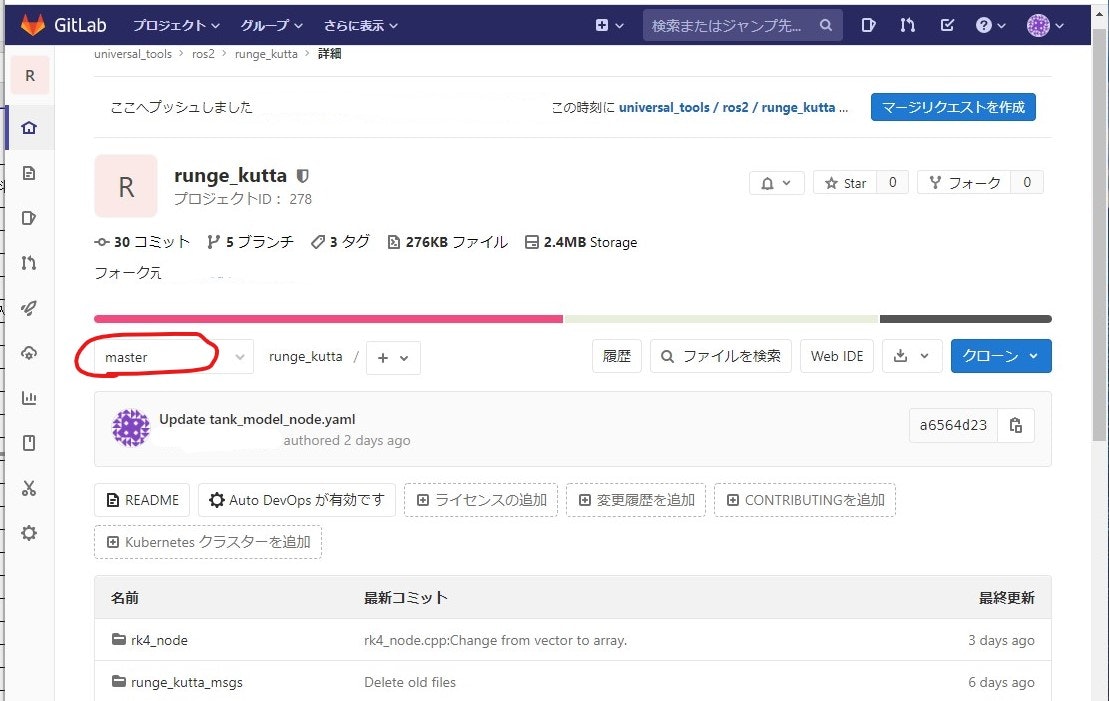
- GitLabにログイン,作成したブランチに移動
- 赤丸の部分をクリックするとブランチを選択できる
- Merge request:マージのお願いの準備

- Merge requestを実行
- ブランチに注意
- 個人プロジェクトからforkした場合,hotfix-...から個人プロジェクトへのマージリクエストになっている.「ブランチの変更」を選択し,グループプロジェクトのメインブランチに変更しなければならない.
- Assigneer
- Assign to meを押して自分にしておく
- Submitマージリクエスト
- 設定がおわれば当該ボタンを押す

プロジェクト管理者の流れ
Merge requestがあればGitLab上に表示されるので内容を確認しつつ必要に応じて結合する.
- GitLab上のMerge request確認
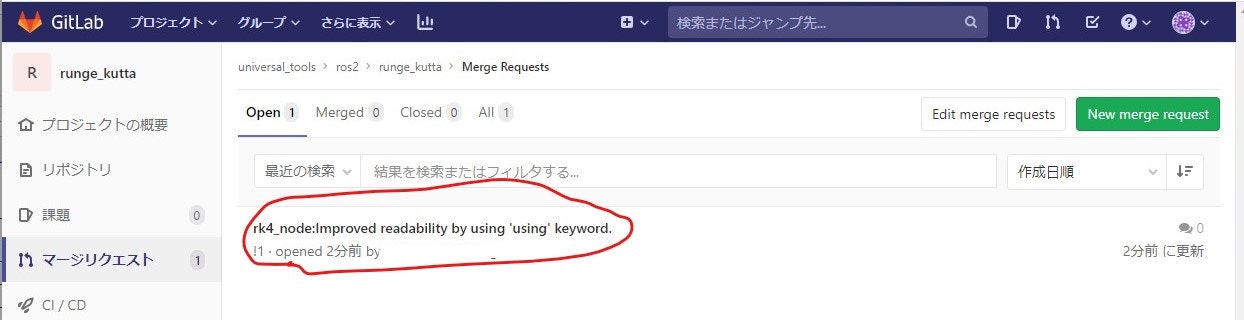
- マージリクエストの数字が増えている.クリックし内容を確認する.

- Merge request一覧からmergeするものを選択
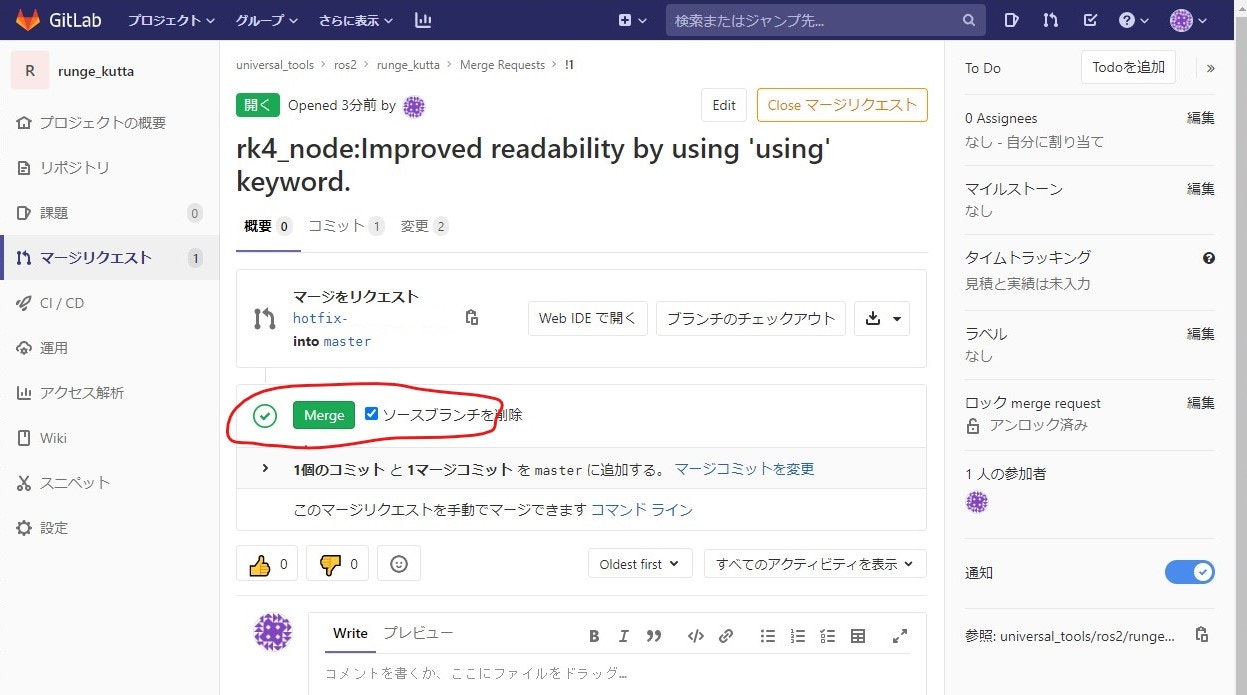
- Request内容が表示されるので確認,Mergeボタン押下により結合実行
プログラム作成・修正する側の流れ
以下のコマンドを用いて,メインブランチの最新版を取り込んでおく.Merge requestを出した時だけでなく,常日頃定期的に実行しておく.誰がいつMerge requestを出し,結合されるか分からないので.
terminal$ git pull origin master
- 投稿日:2020-06-19T10:32:50+09:00
Git使うコマンドメモ~開始参考サイト付き
メモです
よく使うメモ増えたら追記します
プッシュしたいファイルがあるフォルダに移動
$ cd C:/Users/< User >/Documents/Python/
- Windowsの
\ではなく/
$ git initリモートでつなぐオリジンを設定
$ git remote add origin <URL>
- 連続で入力するとエラー起こすのでオリジン消去
$ git remote rm originファイルをGitにあげる(コミット・プッシュ)
$ git add test.py
$ git commit -m "Create test.py"
$ git push origin masterちなみにログインせずにコミットすると
$ git commit -m "Create index.html"

*** Please tell me who you are.

Run

  git config --global user.email "you@example.com"
  git config --global user.name "Your Name"

to set your account's default identity.
Omit --global to set the identity only in this repository.

fatal: unable to auto-detect email address (got '******')
と出る
参考(コマンド)
https://prog-8.com/docs/git-env-win
https://qiita.com/opengl-8080/items/451c5967cbbc262f4f0d参考(ssh接続)
https://qiita.com/0ta2/items/25c27d447378b13a1ac3
https://qiita.com/hollyhock0518/items/a3fee20951cd92c87ed9
~/.sshディレクトリに作成すると場所はC:\Users\< User >\.sshにできる- git で作成してアップロード
GitHub
- 投稿日:2020-06-19T10:04:50+09:00
DockerでGitLabサーバーを立てる
今日も小ネタです。
何番煎じってネタですけど、つまづきポイントあったのでメモがてら。構築セット一式はこちら → https://github.com/yagrush/docker-gitlab
必要環境
- Linux または Mac
- メモリ:8GB以上推奨(←これが意外とハマりどころ…)
- Docker
- docker-compose
MacとLinux(on AWS)で動作確認済です。
Linux(on AWS)は「無料でええやろ」ってt2.microとかでやってて、「なんで動かねんだぁ…」ってハマりました…
t2.large(メモリ8GiB)にしたら無事動作。ちなみにWindowsではうまく動きませんでした。
時間があるときにまた調べてみようかな。使い方
0. 構築セット一式をダウンロードする
wget https://github.com/yagrush/docker-gitlab/archive/master.zip -O docker-gitlab.zip; unzip docker-gitlab.zip; rm -f docker-gitlab.zip

#ついでにディレクトリを移動しておく
cd docker-gitlab-master
1. ポート:80 を他のソフトウェアですでに使用していたら
docker-compose.ymlのports: - 80:80
- 80:80の左側の80をports: - 8081:80とか他の番号に変えてあげてください。
2. ビルド&起動する
docker-compose up -d3. GitLab の WEB UIにアクセスしてみる
http://構築したホストのアドレス:80
↑ 必ずしもドメイン振ってる必要は無く、IP直打ちでもOK。
手順1.でポート変更してたら、:80を書き換えて下さいね。成功すると、まずはじめに管理者ユーザー
rootのパスワード設定を求められるWEB画面が開きます。
設定しおわったらあらためてrootでログインしてみましょう。もしエラー画面になったら
念のため1分くらい待ってから再度アクセスしてみてください。
(中で結構色々起動しているようで重いので、待てば起動するかもしれません。)それでもダメだったら、何か問題が発生しているかもしれません。